
Show popups before visitors open the chat
Pengo Popups invite visitors to chat at the right moment, show who's answering and how fast, rescue a failed discount code, track orders and book calls. Turn popups on, pick a design, write the message and read the numbers.
On this page
Pengo Popups invite visitors to chat before they open the widget. Each one shows who will answer, and how fast once your reply time is measured, at a moment that matters: a first visit, a discount code that fails, an order on its way, a free time in your calendar, your pricing page or a campaign code. Clicking a popup opens the chat. For a booking, an order or a failed code, the visitor’s message is already written.
Pengo doesn’t use AI to pick, write or show popups. Each popup has a built-in rule for when it shows, and uses the data Pengo already has, like who’s online, your team’s reply time, your calendar and your store. You stay in control of every word, and popups use no AI credits.
#The popups
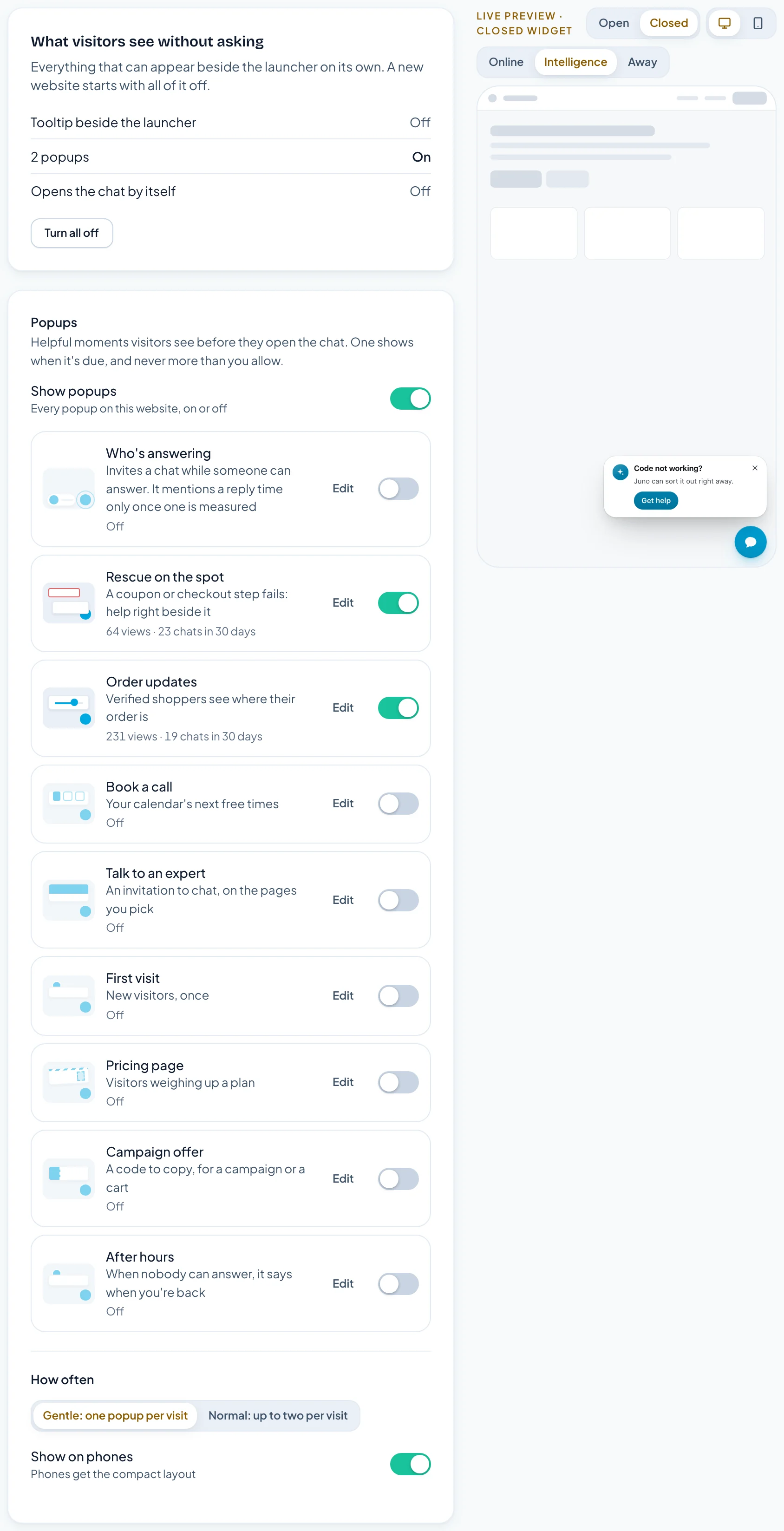
Each popup has one job, a rule for when it shows and a design it starts with. Out of the box only two are on: Rescue on the spot, the help beside a failed discount code or checkout step, and Order updates, once a store is connected. Every other popup, Who’s answering included, stays off until you turn it on. They’re listed in the order the Studio shows them:
| Popup | Shows | Design | Starts |
|---|---|---|---|
| Who’s answering | An invitation to chat while someone can answer, with the reply time once it’s measured | Halo | Off |
| Rescue on the spot | Right beside a discount code or checkout step that fails | Its own card | On |
| Order updates | Verified shoppers, where their order is | Tracker | On, once a store is connected |
| Book a call | Your calendar’s next three free times | Time tiles | Off, needs a calendar |
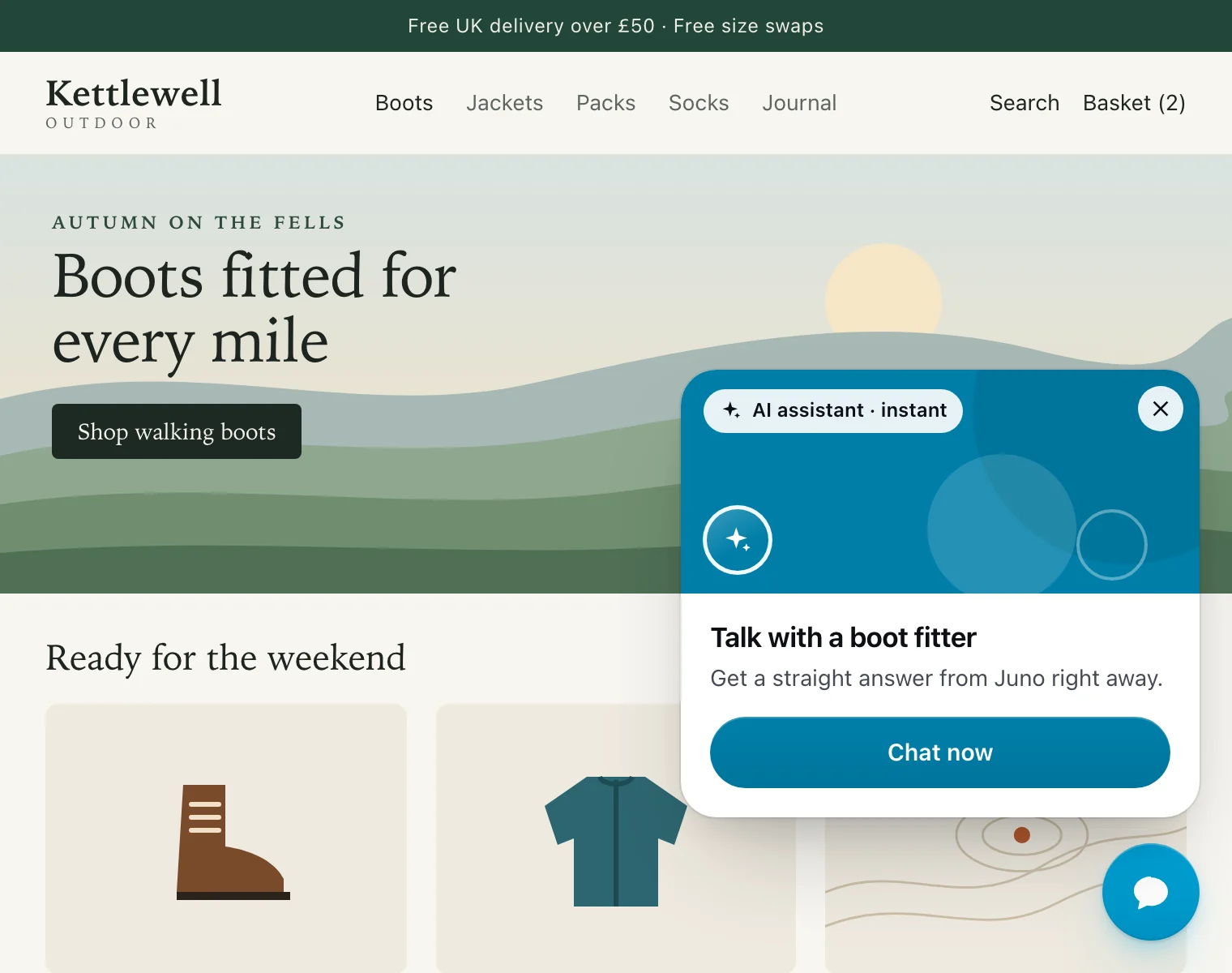
| Talk to an expert | An invitation to chat, on the pages you pick | Spotlight | Off |
| First visit | New visitors, once | Peek | Off |
| Pricing page | Visitors weighing up a plan, on pages that start with /pricing | Postcard | Off |
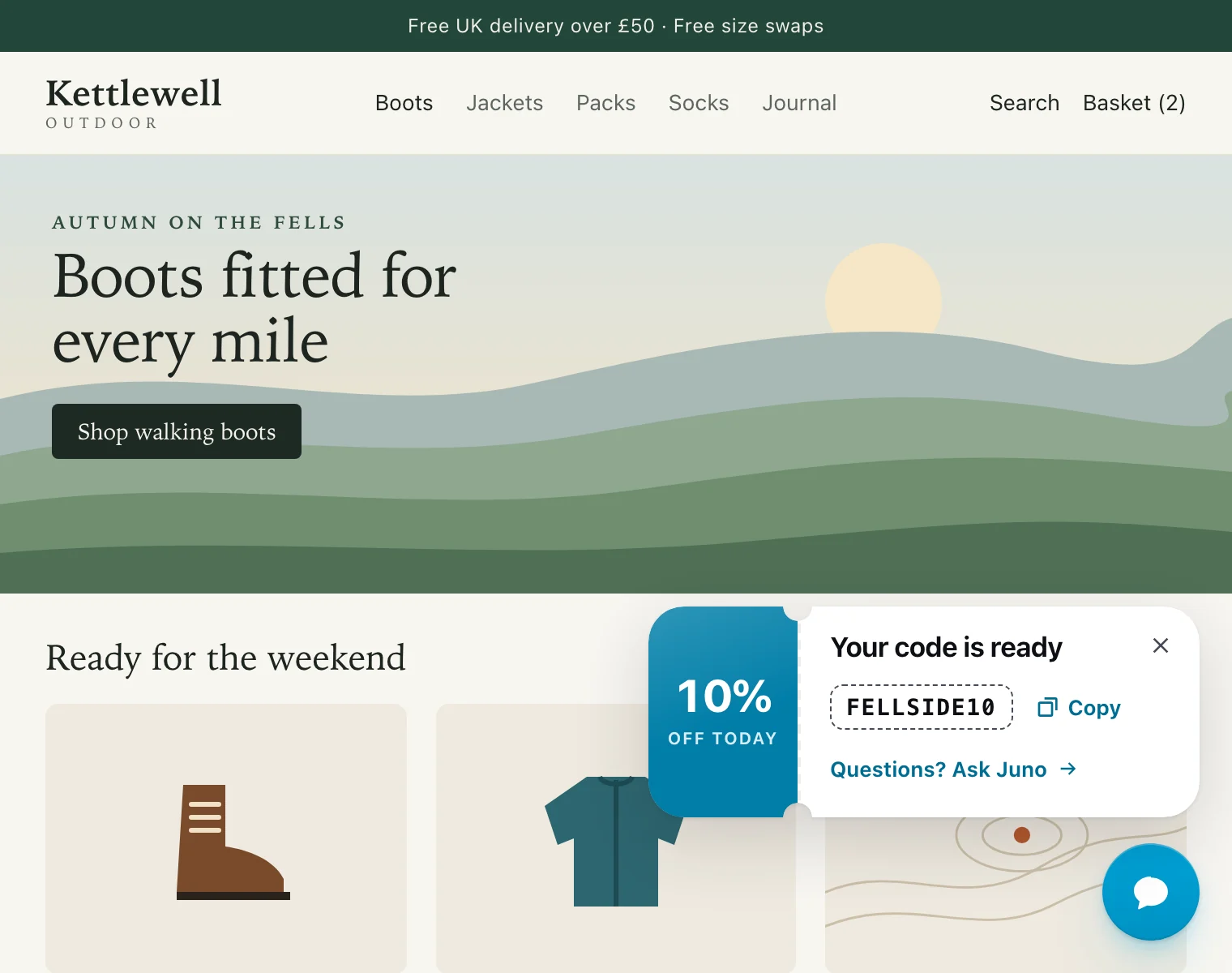
| Campaign offer | A code to copy, for a campaign or a cart | Ticket | Off |
| After hours | When nobody can answer, when you’re back | Peek | Off |
Popups that invite a chat show only while Pengo Intelligence or your team can answer. After hours does the opposite: it shows only while nobody can. Book a call shows whenever your calendar has free times, since a call is booked for later and nobody needs to be online.
When two popups are due on the same page, the more specific one goes first: Order updates, then Campaign offer, Book a call, Pricing page, Talk to an expert, First visit and After hours. Who’s answering comes last. Rescue on the spot isn’t in the queue: it shows the moment something fails.
#Turn popups on or off
-
Go to Settings Chat widget Proactive .
-
Under Popups, use Show popups to turn every popup on this website on or off at once.
-
Use the switch on a popup’s row to turn just that one on or off.
-
Click Save changes at the top of the page.
#Popups that use a connected tool
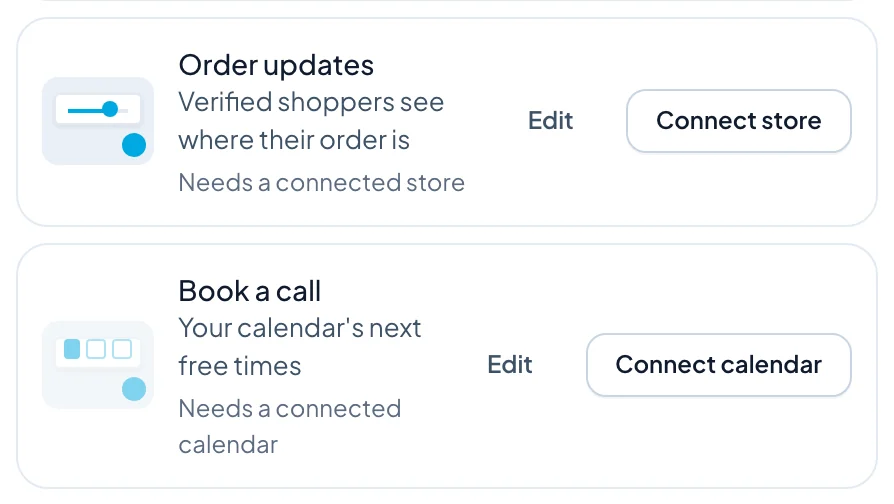
Order updates reads orders from your store, and Book a call reads free times from your calendar. Until the tool is connected, the row shows a Connect store or Connect calendar button in place of the switch. Click it, connect the tool, and the switch appears.
- Store: Shopify, WooCommerce or BigCommerce, in Settings Integrations . See Connect Shopify.
- Calendar: Calendly, Cal.com or Google Calendar, in Settings Integrations Booking . See Let visitors book meetings in chat.
#Who’s answering
Every popup shows whoever will actually reply, so one message works at any hour:
- Pengo Intelligence answers. The popup shows your AI assistant, labelled as AI, and says it answers right away.
- Pengo Intelligence answers and teammates are online. The assistant comes first, with your online teammates beside it when they have a profile photo.
- Your team answers. The popup speaks as your website, with your team’s reply time once it’s measured, and shows up to three online teammates who have a profile photo.
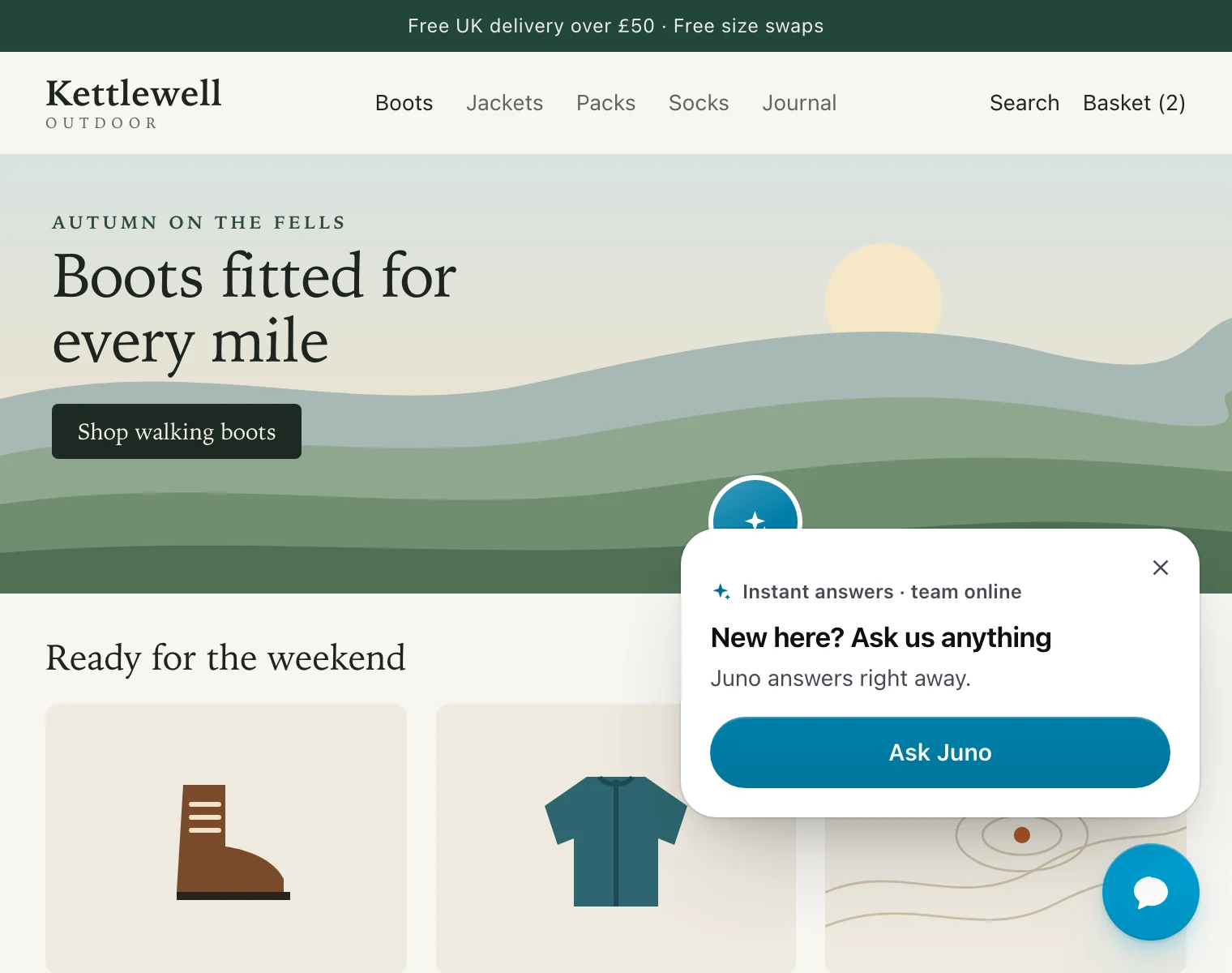
The Who’s answering popup is off until you turn it on. It uses the Halo design: one line beside the chat button, with the same faces and how fast they answer. It goes away after 20 seconds.
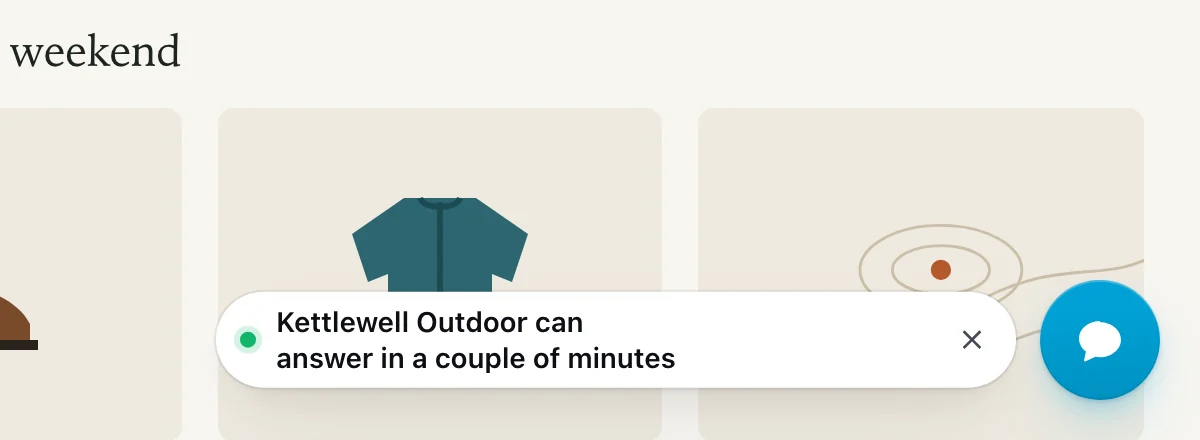
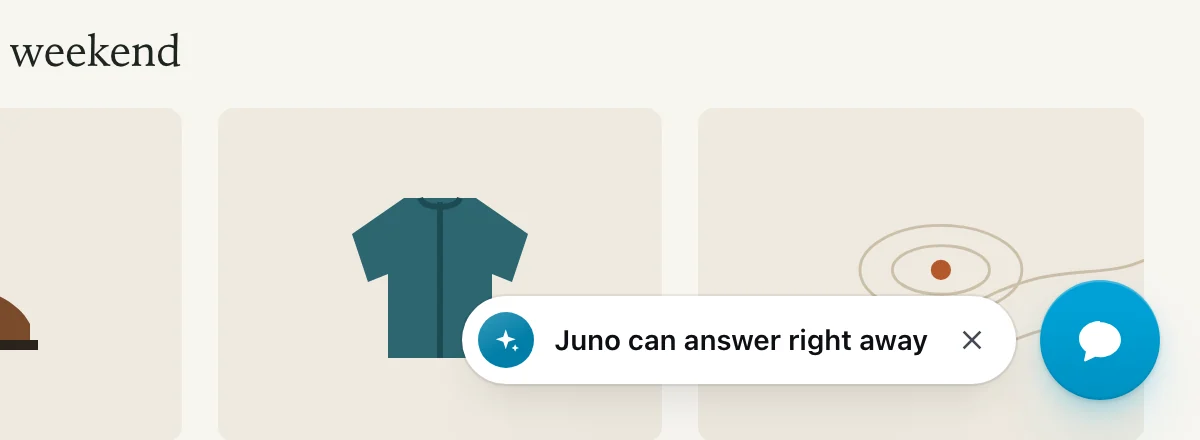
The reply time comes from your team’s first replies over the last 30 days, in plain words such as “in a couple of minutes” or “within an hour”. While Pengo Intelligence answers, it reads “right away”. Until there are enough replies to measure, popups never guess: the reply time drops out of the message, and Who’s answering simply invites the visitor to ask.
#Rescue on the spot
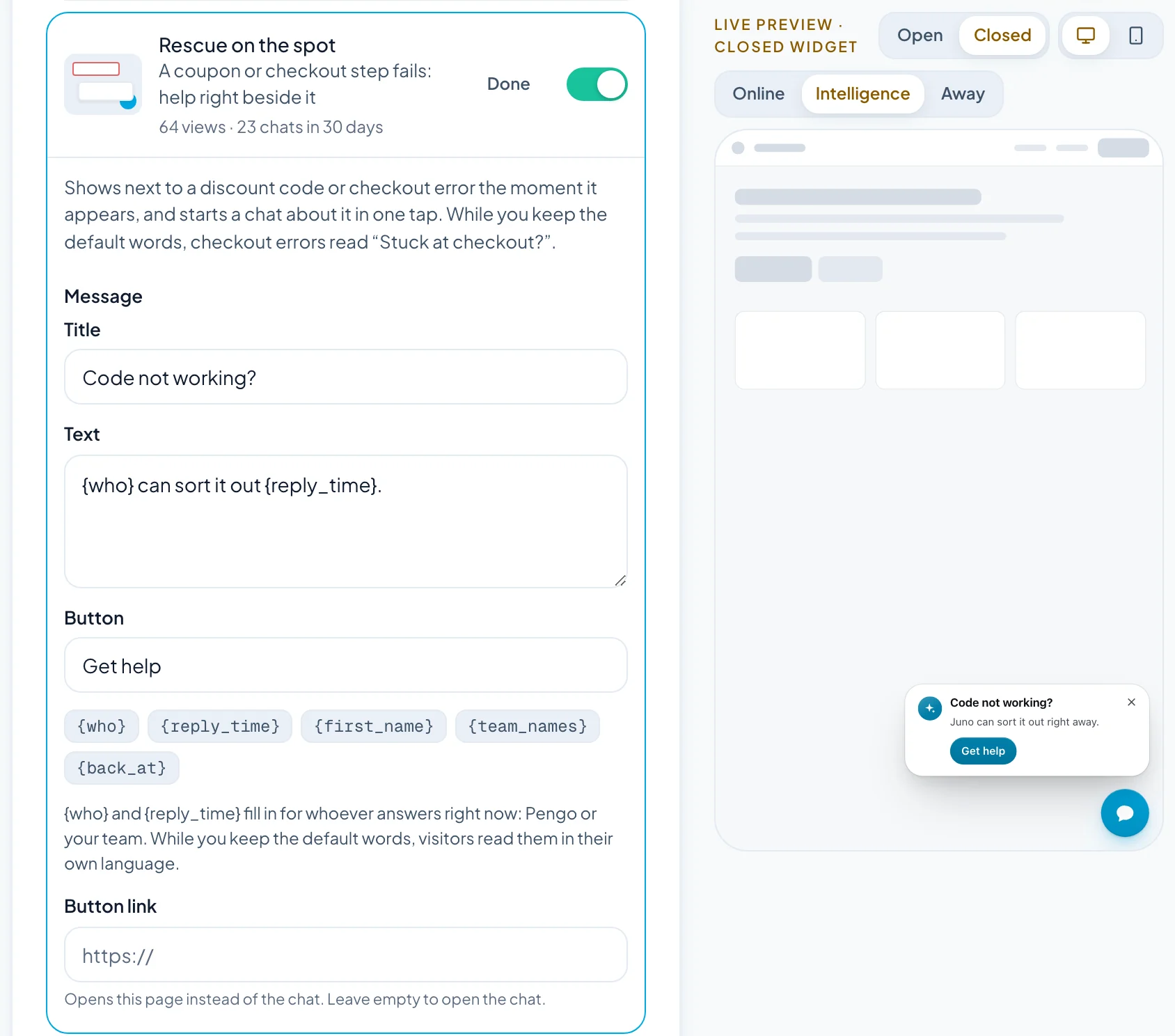
When a discount code is turned down or a checkout step fails, a small card shows right beside the error, with whoever can help and how fast. It reads “Code not working?” for a discount code and “Stuck at checkout?” for checkout, then “Kettlewell Outdoor can sort it out in a couple of minutes.” (your assistant’s name while it answers) and a Get help button.
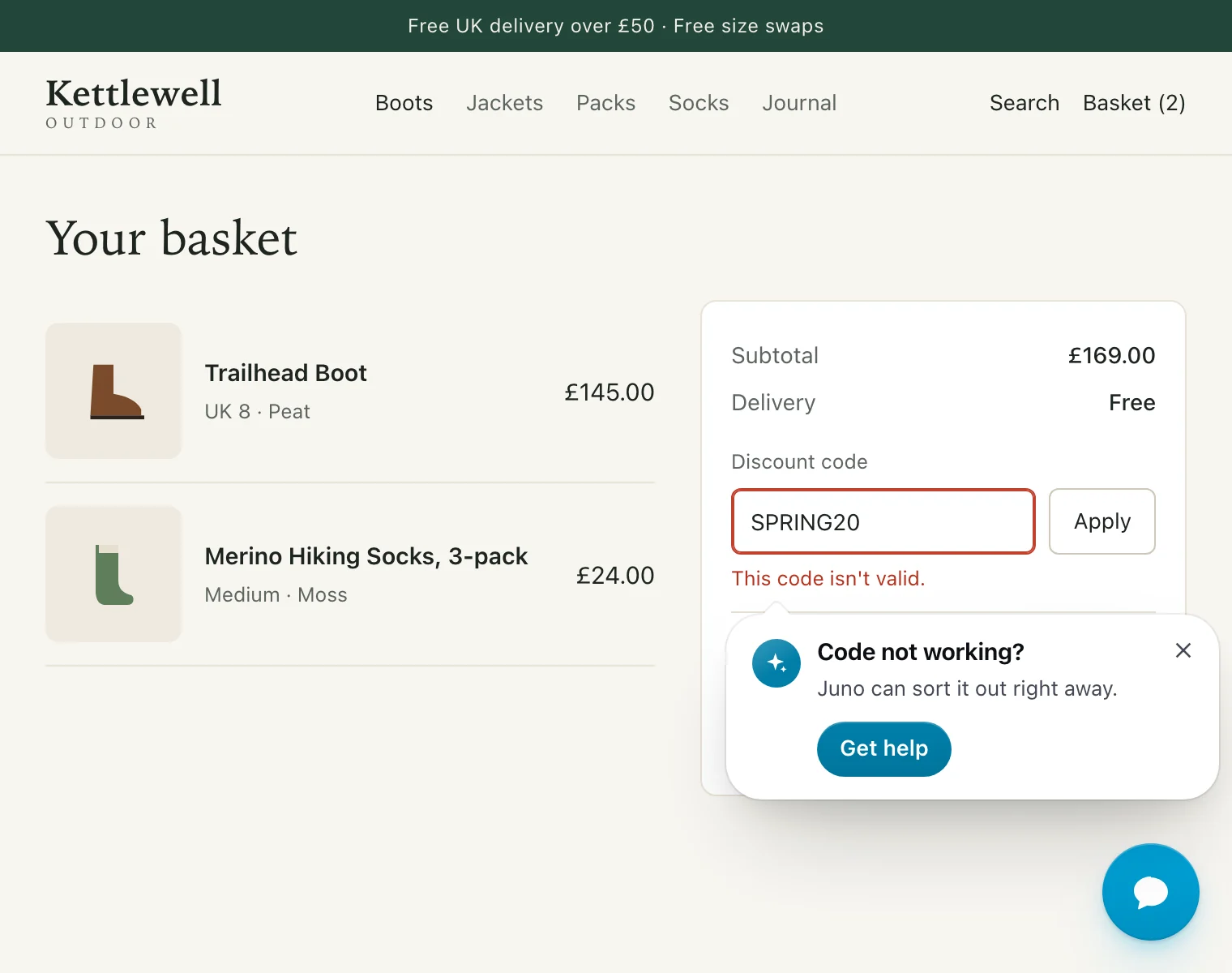
- Nothing to set up. Pengo spots failed discount codes and checkout steps on your pages by itself.
- One tap to a chat. Get help opens the chat with “My discount code isn’t working.” or “I’m having trouble checking out.” ready to send, so the visitor doesn’t have to explain.
- Only when it helps. It shows once per kind of problem per visit, while Pengo Intelligence or your team can answer. Its × hides it for a day.
- Always room for it. It shows over any other popup and doesn’t count towards How often.
On phones the card sits above the chat button, so it never covers the field the visitor is fixing.
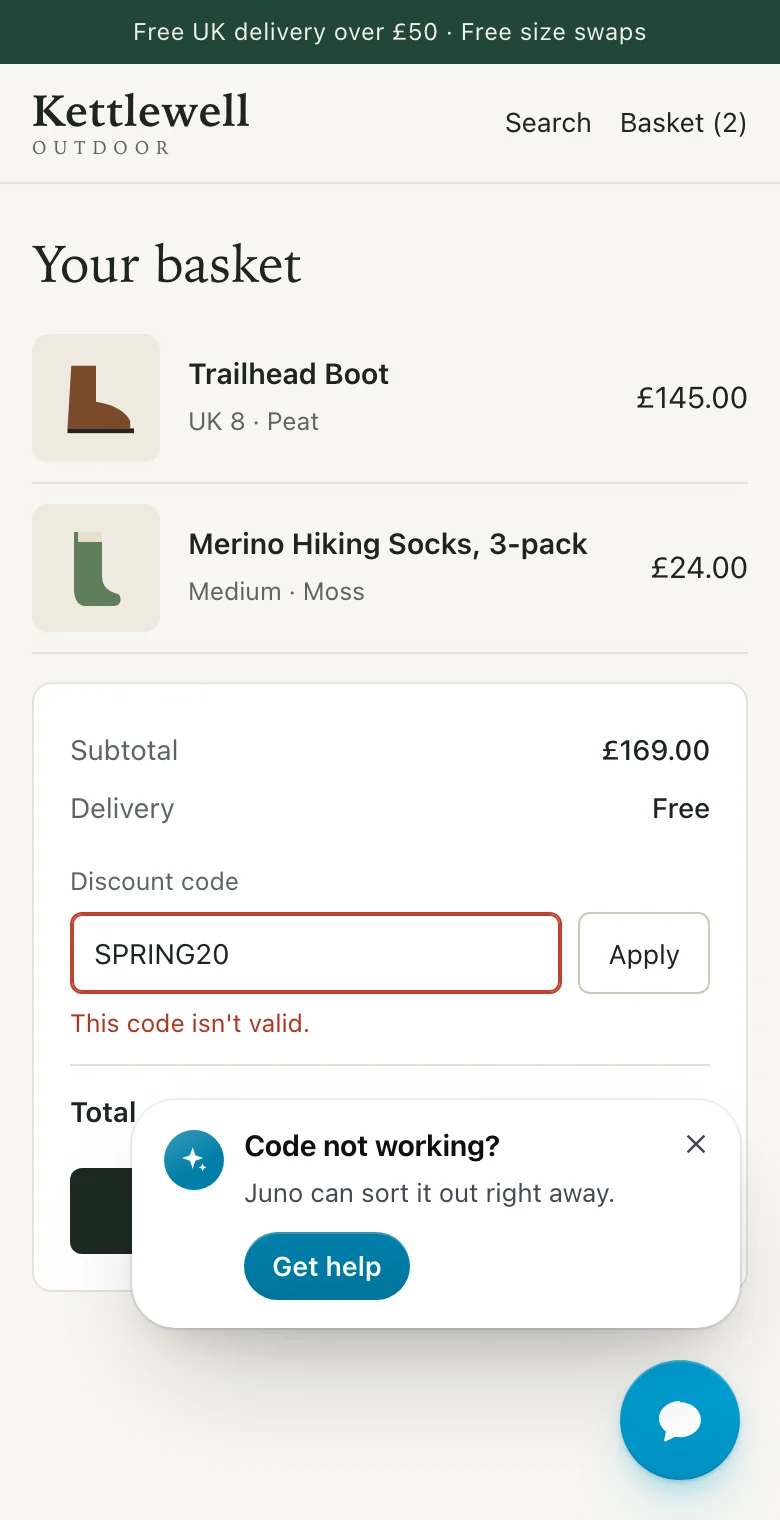
Rescue on the spot has its own design and no pages or delay to set. Click Edit to change its words or add a button link.
#Order updates
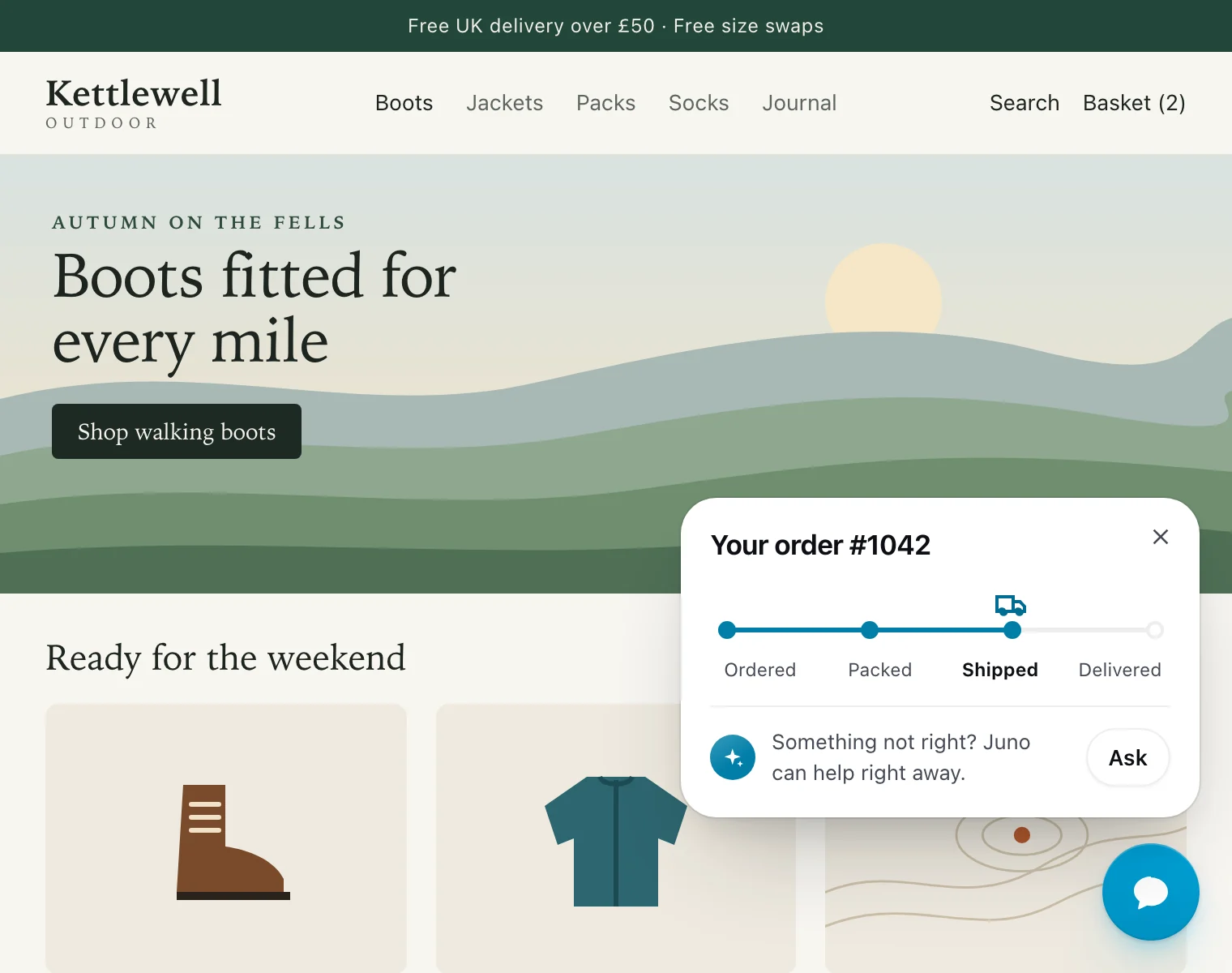
Signed-in shoppers see their newest order on a progress bar, Ordered, Packed, Shipped, with “Your order #1042” and a line from your team. Ask opens the chat with “About my order #1042” ready to send.
It needs two things:
- A connected store: Shopify, WooCommerce or BigCommerce.
- Verified shoppers. Your site tells Pengo who is signed in with identity verification, and Pengo looks up that shopper’s orders by their verified email. Visitors who aren’t verified never see it, and your store isn’t asked.
It shows once per step, so a shopper sees it when the order is placed, packed and shipped. Delivered and cancelled orders, and orders more than 30 days old, don’t show. Only the order number and its step reach the page. Use {order_number} in its words.
#Book a call
Book a call shows the next three free times from your connected calendar as tiles, in the visitor’s own time zone, with a More times link.
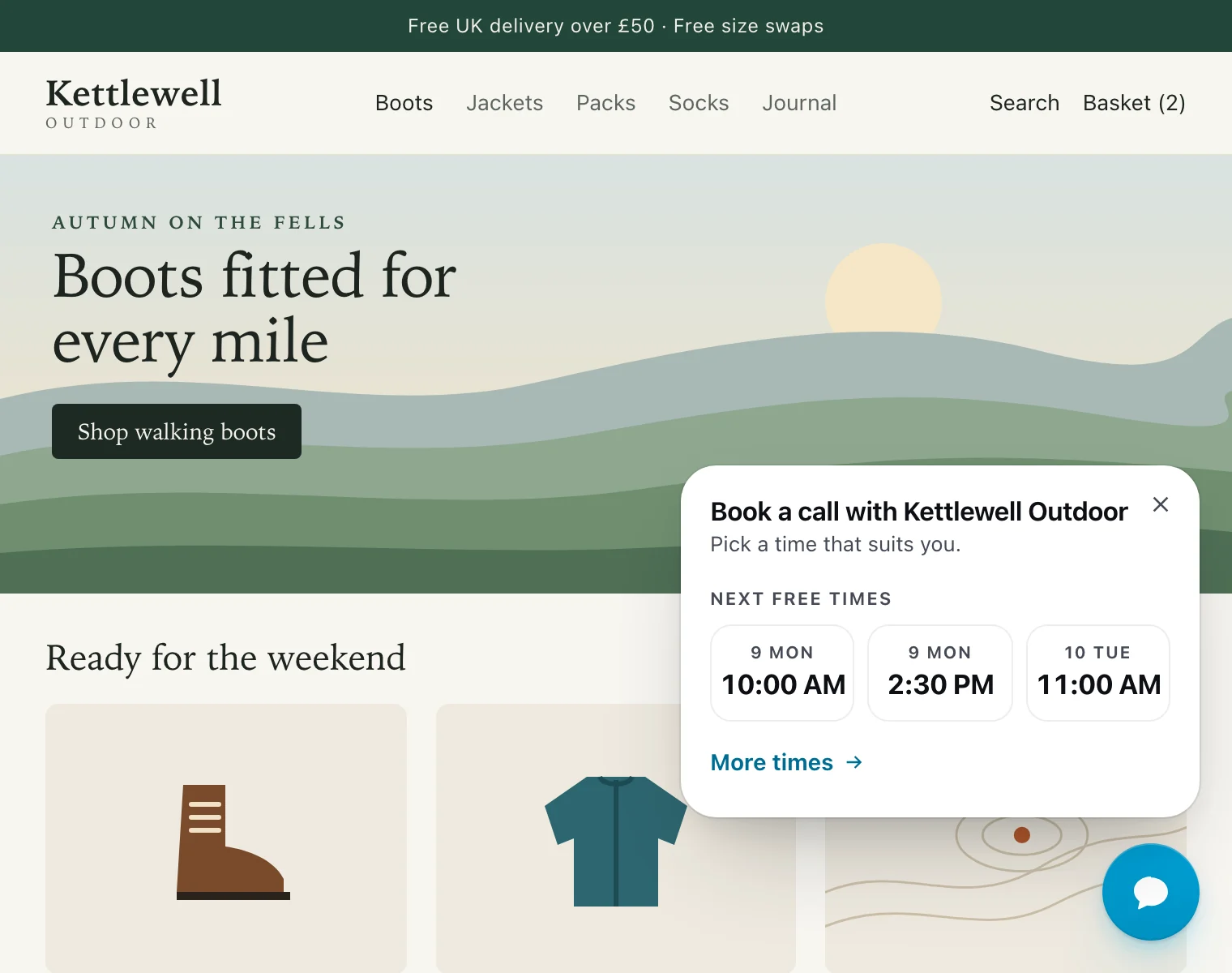
A tap on a time opens the chat with that time, and the chat replies straight away with the booking card, that time first. If the visitor hasn’t given an email yet, the card asks for one. More times opens the chat with the booking card and every free time.
Book a call doesn’t need anyone online. It shows at most once a day, and it’s off until you turn it on.
#Edit a popup
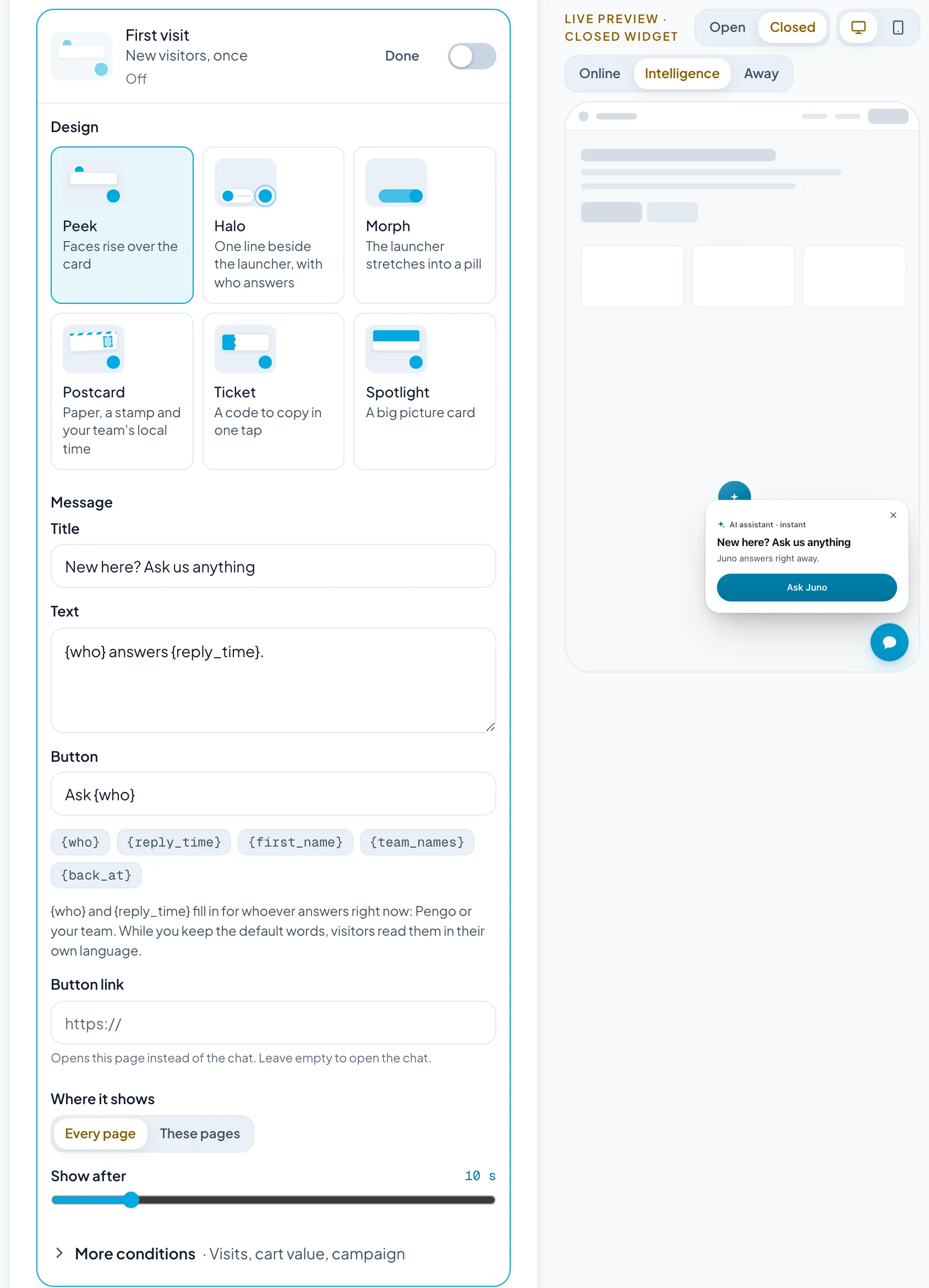
Click Edit on a popup’s row. The editor opens right under it, and the live preview beside the list shows your changes as you make them.
-
Pick a Design: Peek, Halo, Morph, Postcard, Ticket or Spotlight. Rescue on the spot, Order updates and Book a call have their own designs, so they skip this step.
-
Under Message, write the Title, Text and Button. Click a chip to insert a variable where your cursor is.
-
Optionally add a Button link. The button then opens that page instead of the chat. Use a full
https://link. -
Under Where it shows, choose Every page or These pages, and set Show after to how many seconds the visitor should be on the page first. Rescue on the spot doesn’t have these: it shows when something fails.
-
Open More conditions to narrow it further: From this visit on, Cart worth at least or Only for this UTM campaign.
-
Click Done, then Save changes.
#Variables
| Variable | Becomes |
|---|---|
{who} | Your website’s name, or your AI assistant’s name while it answers. Popups never name a teammate for you; the faces of who’s online show beside the text |
{reply_time} | How fast they answer: “right away” for Pengo Intelligence, or your team’s measured reply time. Left out until there’s one to show |
{first_name} | The visitor’s first name, when your site has told Pengo who they are. Otherwise it drops out, comma and all |
{team_names} | The teammates who are online, such as “Hannah and Owen” |
{back_at} | When your team is back, from your business hours. For After hours |
{order_number} | The shopper’s order number, such as “#1042”. For Order updates |
So “{who} answers {reply_time}.” reads “Kettlewell Outdoor answers in a couple of minutes” while your team answers, and “Juno answers right away” while your assistant, Juno, does. With no measured reply time yet, it reads “Kettlewell Outdoor answers.”
#Default words and languages
Every popup starts with default words. While you keep them, visitors read them in their own language. Words you edit are shown exactly as you wrote them. To go back, click Use the default words.
#Fields for some designs
- Ticket, or the Campaign offer popup: Code to copy, plus the Big text and Small text on the stub, such as “10%” and “off today”. Campaign offer shows only once it has a code.
- Spotlight: a Picture, as an
https://link. Without one, the card uses shapes in your brand colour. - Postcard: Where your team is and its Time zone. The postcard shows your city with your team’s local time.
#Check every case in the preview
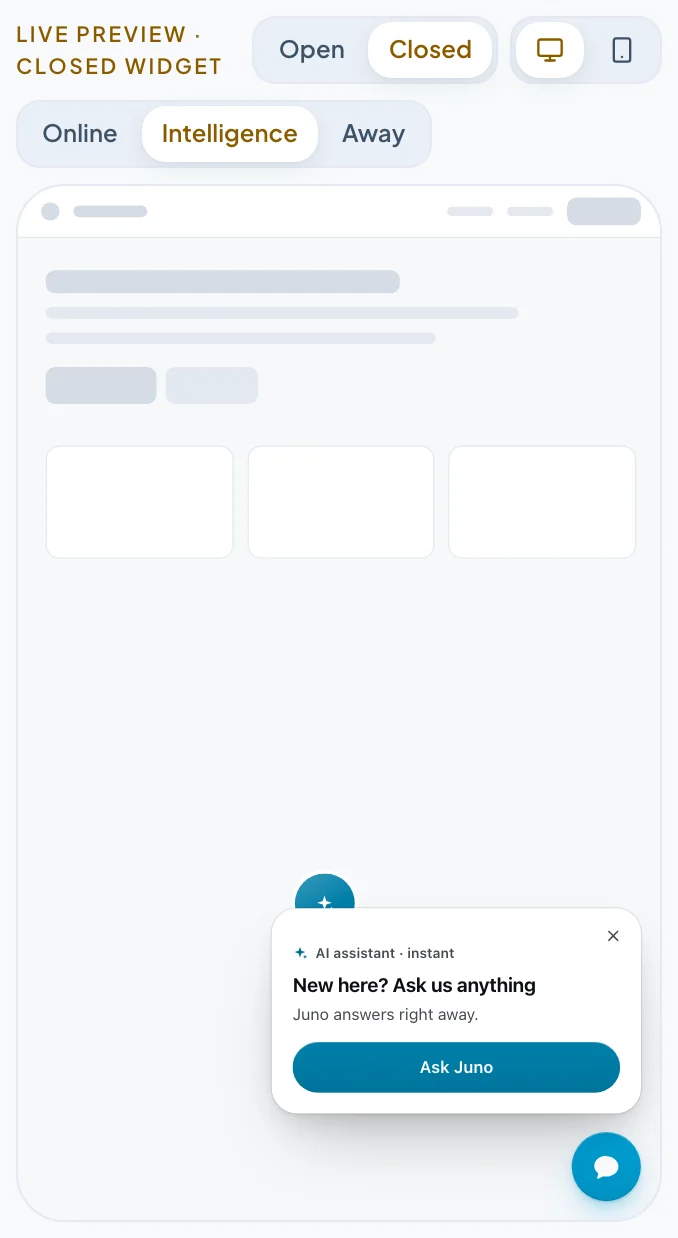
Use the Online, Intelligence and Away switch above the preview to see the popup as visitors will when your team answers, when Pengo Intelligence answers, and after hours. Open and Closed, and the desktop and phone buttons, work as they do for the rest of the widget.
#The six designs
Seven popups can use any of these six designs. Rescue on the spot, Order updates and Book a call have designs of their own, shown above.
#Peek
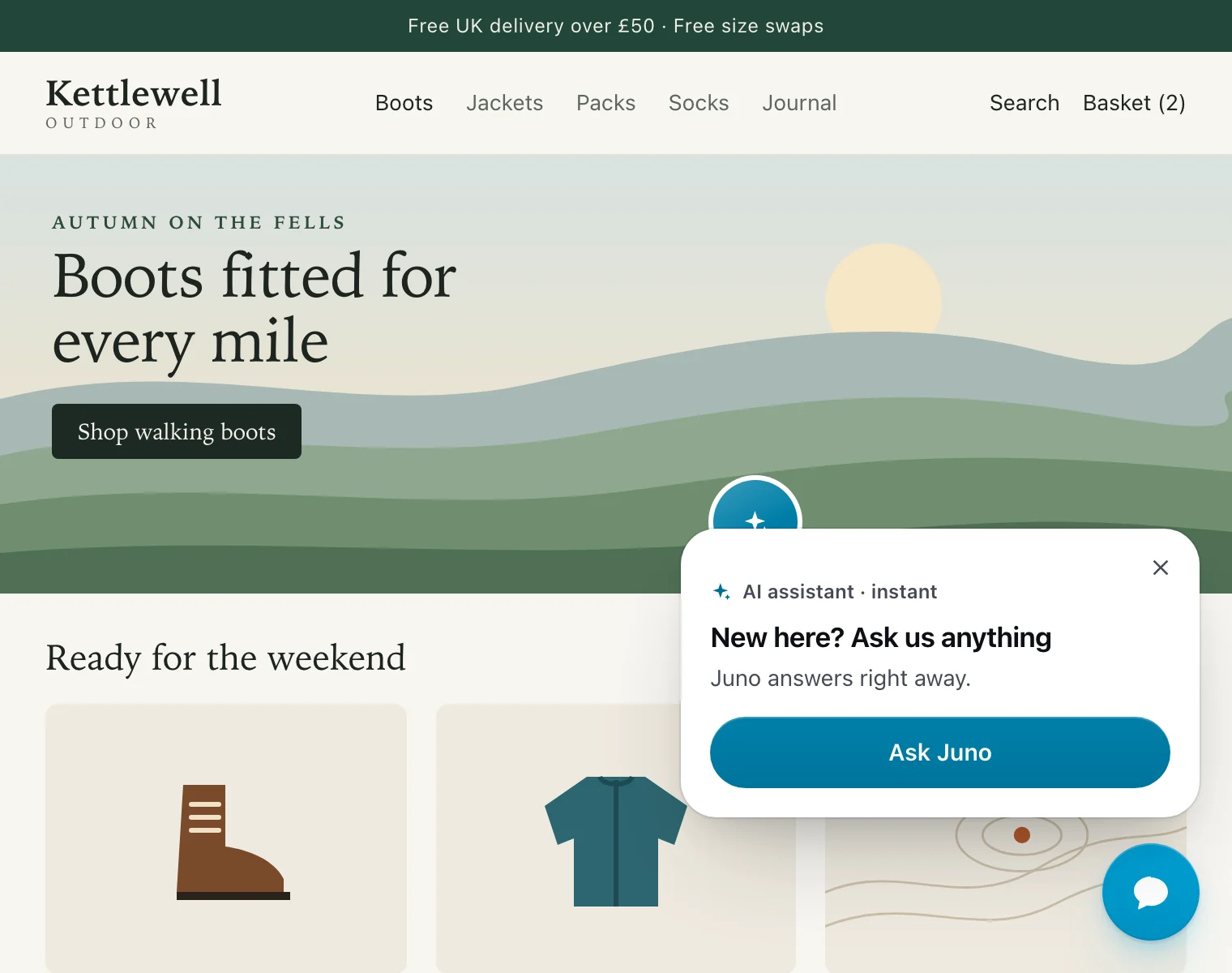
Your team’s faces rise from behind the card’s top edge, like someone leaning over a counter. It’s the starting design for First visit and After hours. See it at the top of this guide.
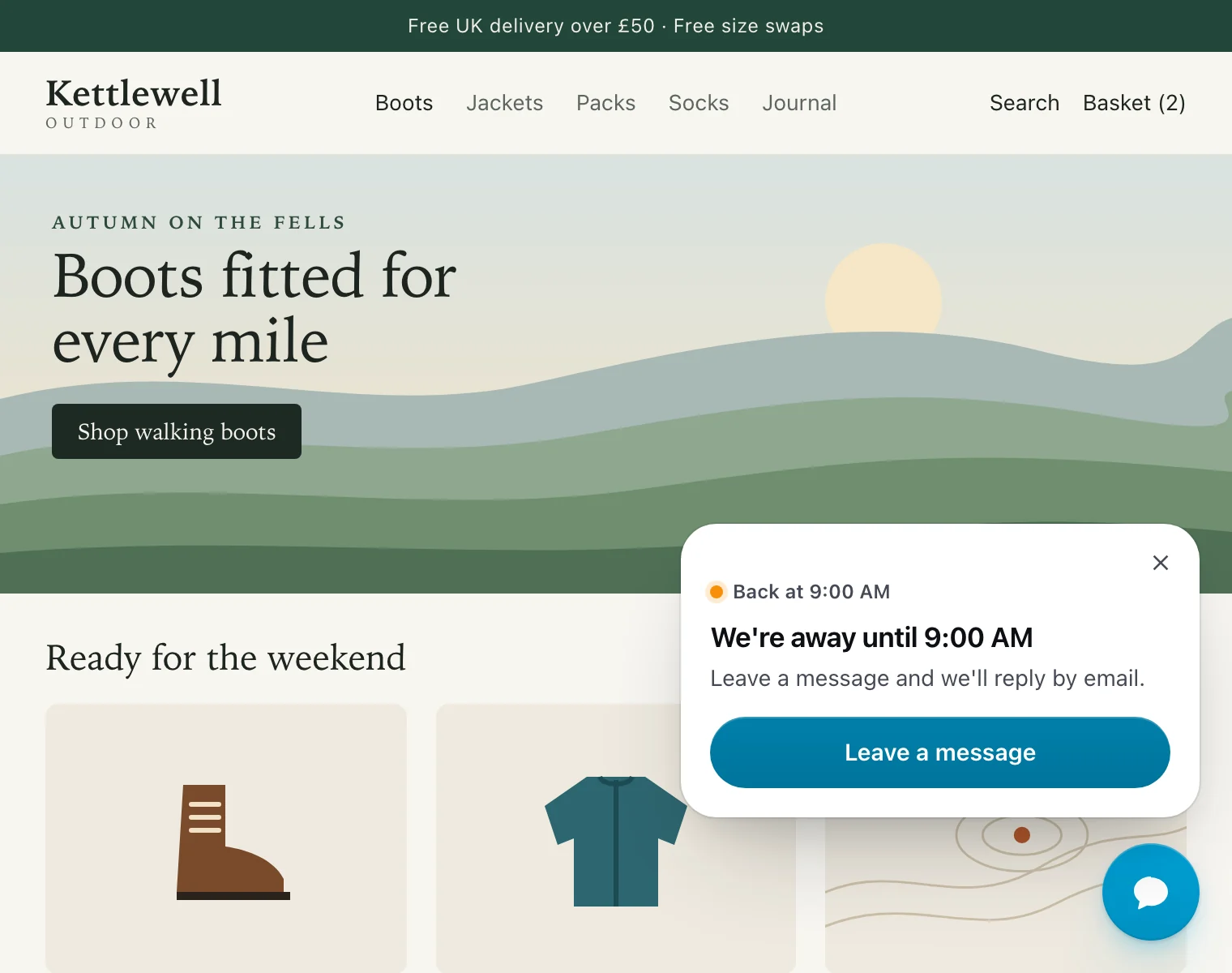
#Halo
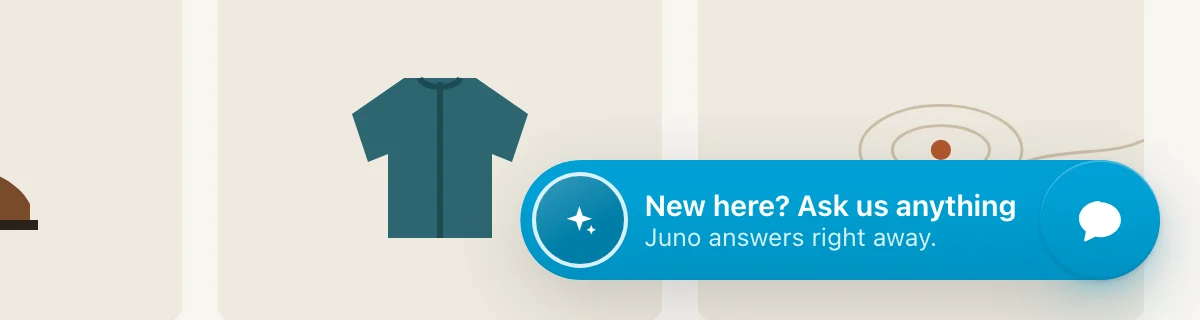
One line beside the chat button, where a tooltip would sit, with the faces of whoever can answer and how fast. There’s no card, so it suits every page. It’s the design for Who’s answering.
#Morph
The chat button itself stretches into a pill with a face and one line, then settles back after 8 seconds. It’s the quietest nudge, and it works especially well on phones.
#Postcard
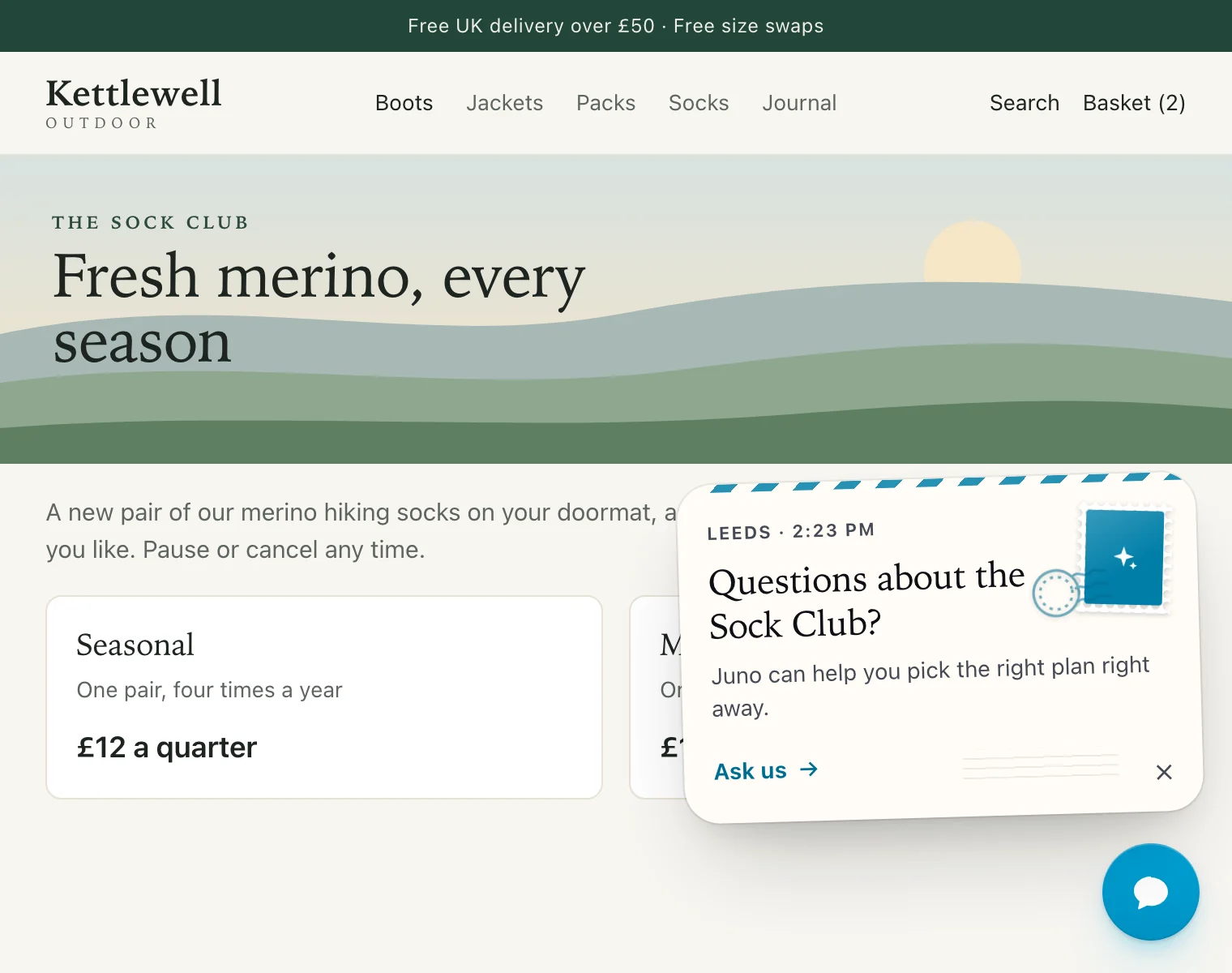
Paper with an airmail edge in your brand colour, a stamp with a teammate’s face, and your team’s city and local time. It’s the starting design for the Pricing page.
#Ticket
A tear-off ticket with your offer on the stub and the code beside it. Visitors copy the code in one tap, and the ticket stays open to say Copied. It’s the design for Campaign offer.
#Spotlight
A big picture card with the people who answer on it and one clear action. It’s the design for Talk to an expert.
#How often and phones
How often applies to every popup on the website:
- Gentle: one popup per visit, the default.
- Normal: up to two per visit.
A visitor who closes a popup, with its × or the Escape key, doesn’t see that popup again for a week. Cards stay until the visitor closes them or opens the chat.
Rescue on the spot is the exception: it shows the moment something fails, over any other popup, and doesn’t count towards How often. Its × hides it for a day.
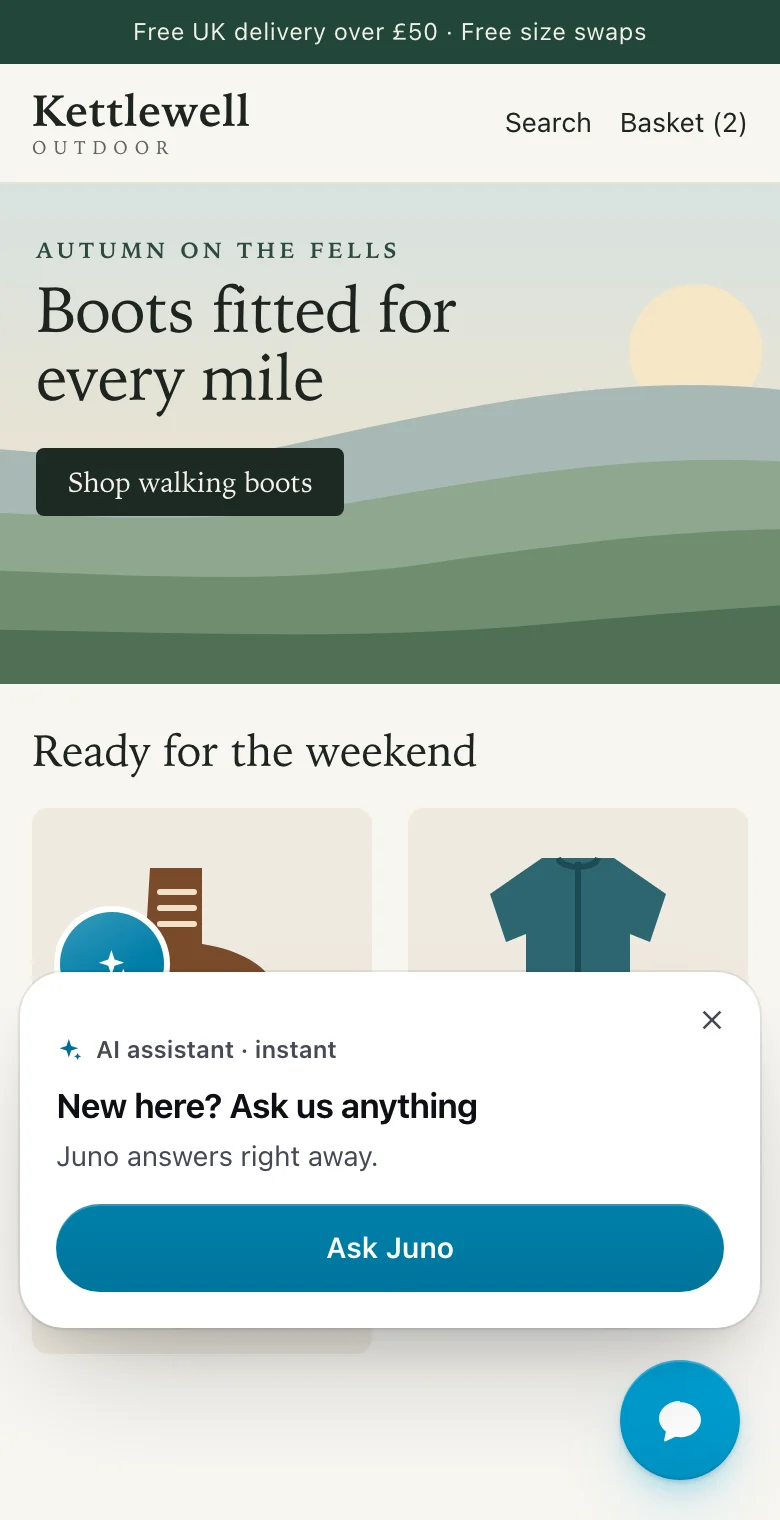
Turn on Show on phones to show popups on phones too. Phones get the compact layout: cards sit across the bottom of the screen above the chat button, Rescue on the spot sits above the chat button, and Halo and Morph stay as they are.
#Read the numbers
Each popup’s row shows its numbers for the last 30 days, such as “412 views · 41 chats in 30 days”:
- Views: how many times visitors saw it.
- Chats: how many conversations it started.
Divide chats by views to compare popups fairly. If one starts few chats, try a different design or a more specific message. A line about the page the visitor is on, such as “Questions about the Sock Club?”, usually does better than a general hello.
#Fits every website
Popups take your widget’s look, so they match your site with no extra work:
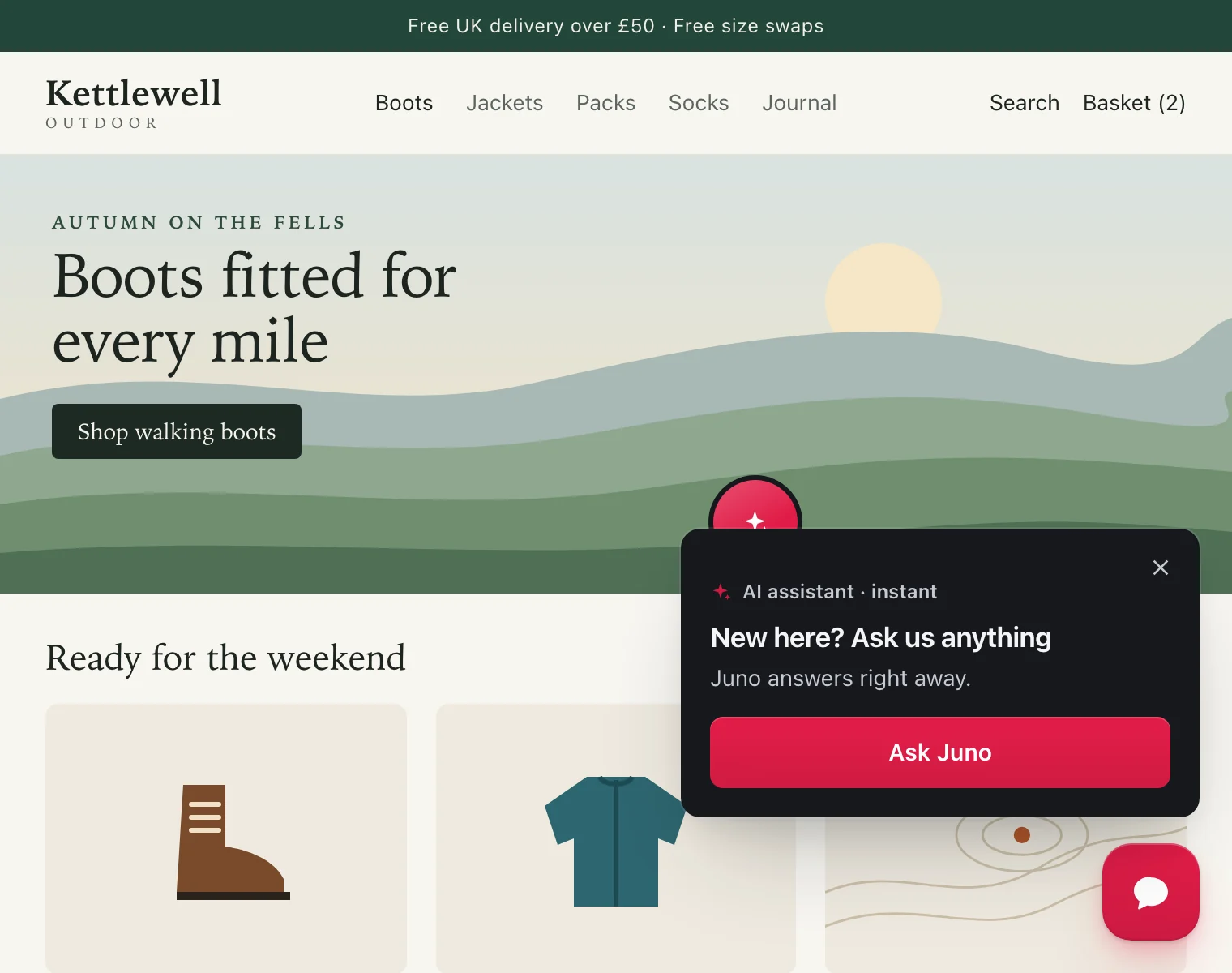
- your brand colour, in light or dark mode
- rounded or square corners
- a chat button on the left or the right
- right-to-left languages
Popups are built to be light, too. The script is 14.5 KB and only loads on pages where a popup could show. Popups float over the page, so nothing on it moves, and visitors who prefer reduced motion see them without animation.
#Your eye catcher carried over
If your eye catcher was on, it’s now the Talk to an expert popup, and you can give it any design.
For auto-open, chat triggers and AI greetings, see Proactive messages and auto-open.
Common questions
Does Pengo use AI to choose or write popups?
No. Each popup has a built-in rule for when it shows, such as a discount code that fails or the pricing page, and uses the data Pengo already has, like who's online, your team's reply time, your calendar and your store. You write the message, or keep the default words. Popups use no AI credits.
How many popups will a visitor see?
With How often on Gentle, the default, at most one per visit. Normal allows up to two. Rescue on the spot doesn't count towards that, because it answers a problem the visitor just hit. A visitor who closes a popup doesn't see it again for a week.
Will popups slow down my website?
No. The popups script is 14.5 KB and only loads on pages where a popup could show. Popups float over the page, so nothing on your page moves.
Do I need to set anything up for Rescue on the spot?
No. It's one of the two popups on from the start, with Order updates, and spots failed discount codes and checkout steps by itself. Turn it off on its row if you'd rather not use it.
Which visitors see Order updates?
Shoppers your site has signed in with verified identify, who have an order on its way from your connected Shopify, WooCommerce or BigCommerce store. Only the order number and its step reach the page.
What happened to my eye catcher?
If it was on, it carried over as the Talk to an expert popup.
Do popups show in my visitors' language?
Yes, while you keep the default words. Pengo shows them in the visitor's language. Words you edit are shown exactly as you wrote them.
Why does the popup show the AI assistant and not my team?
Because Pengo Intelligence is answering. A popup always shows whoever will actually reply, and labels the assistant as AI. When teammates are online too, their faces appear beside it.
Was this guide helpful?
One click tells us which guides to improve next.
Thanks, we'll make it clearer. For an answer right now, or contact support.