Refund approval workflow: small refunds in seconds, big ones checked by the right person
How to design a refund approval process: write the policy, let small refunds run in chat, cap what goes out each day, and send big ones to the right approver.

On this page
- What a refund approval workflow is
- Step 1: Write the refund policy down first
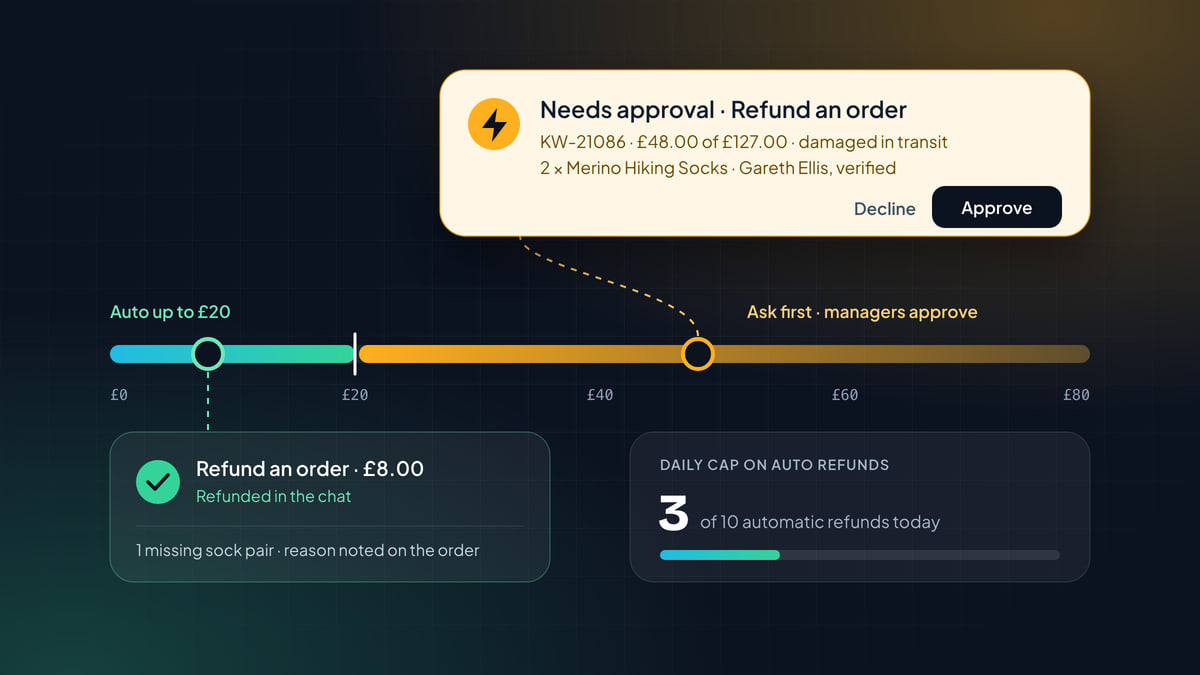
- Step 2: Sort refunds into tiers
- Step 3: Add a daily cap
- Step 4: Take the amount from the order, never from the chat
- Step 5: Check who’s asking
- Step 6: Note the reason on the order
- Step 7: Decide what the customer hears while it waits, and after
- Make approving fast, wherever the approver is
- When a teammate refunds from the inbox
- Offer the alternative before the refund
- Refunds for subscription businesses
- Map your policy to the settings
- Review the Activity tab weekly and tune your limits
- Mistakes we see most often
- Your refund workflow checklist
Key takeaways
- Write the refund policy down before you automate it: the window, the reasons you accept, partial versus full, when the customer keeps the item, and the alternatives you'd rather offer. Automation can only follow rules that exist.
- Sort refunds into tiers: small ones run on their own up to an amount, bigger ones ask first, and high-risk ones go to managers. A daily cap limits how many refunds go out without a person on any one day.
- The amount must come from the order, never from the chat. A customer can type any number. The order can't.
- Refund only verified customers, note the reason on the order, and tell the customer honestly what is happening while a request waits for a person.
- Read the Activity tab weekly and move your limits in small steps, based on what your team actually approved and rejected.
Refund requests are where support speed and support caution pull hardest in opposite directions. The customer wants their money back now. Your finance side wants to know every pound that leaves, and why. Most teams settle the argument by sending every refund through one person, which means a missing pair of socks waits a day for a manager while a much bigger, stranger request gets the same quick glance.
A refund approval workflow fixes that by deciding in advance which refunds need a person and which don’t. Small, clear-cut refunds happen in the chat in seconds. Big or unusual ones reach the right person’s eyes with everything they need to decide. This playbook walks through designing one, in the order we’d do it, using Kettlewell Outdoor, a walking boots and outdoor clothing store in Leeds, as the example.
What a refund approval workflow is
The same three questions apply to every refund request:
- Does it qualify? Inside the window, for a reason you accept, for an order this customer actually placed.
- Who decides? Nobody, because it’s small and clear. A teammate. A manager.
- What’s recorded? The amount, the reason, who approved it and when.
Answer them once, in writing, and the rest of this guide is plumbing.
Step 1: Write the refund policy down first
You can’t automate a policy that lives in someone’s head. Before you touch a setting, write down what your team already does, including the exceptions they make without thinking. A refund policy worth automating covers:
- The window. How long after purchase or delivery a customer can ask. Kettlewell Outdoor takes back unworn items within 60 days.
- The reasons you accept. Damaged in transit, lost parcel, wrong item, changed mind. Be specific about which reasons get a refund and which get a return.
- Partial versus full. One missing pack in an order of three is a partial refund. A parcel that never arrived is a full one.
- When the customer keeps the item. Asking someone to post back a scuffed £8.00 pair of socks costs you more than the socks. Write down the amount below which you don’t want things back.
- The alternatives. A late parcel that arrived fine may deserve an apology, not a refund. A single-use discount code or account credit often fits better, and gives them a reason to order again.
- What always goes to a person. Outside the window, a parcel tracking says was delivered, a second claim in a month, anything involving a chargeback.
For Kettlewell, the written version fits on a page:
Refunds at Kettlewell Outdoor

Window: unworn items within 60 days of delivery. We send a prepaid Royal Mail label.
Damaged in transit: refund the damaged items to the original payment. Customer keeps them.
Lost in transit: full refund once tracking shows no delivery after 10 working days.
Late but fine: say sorry with a single-use discount code instead of a refund.
Changed mind on worn boots: no refund. Offer the size guide and a person to talk to.

Up to £20: no approval needed.
Above £20: a manager approves.
Always a person: outside 60 days, "delivered" per tracking, second claim in 60 days.
Then put the customer-facing half of it into your help content. If your returns article says one thing and your team does another, any AI answering from that article will repeat the article. Our guide to writing help content an AI can answer from covers how to structure a page like “Returns and exchanges” so it gets found and quoted correctly.
Step 2: Sort refunds into tiers
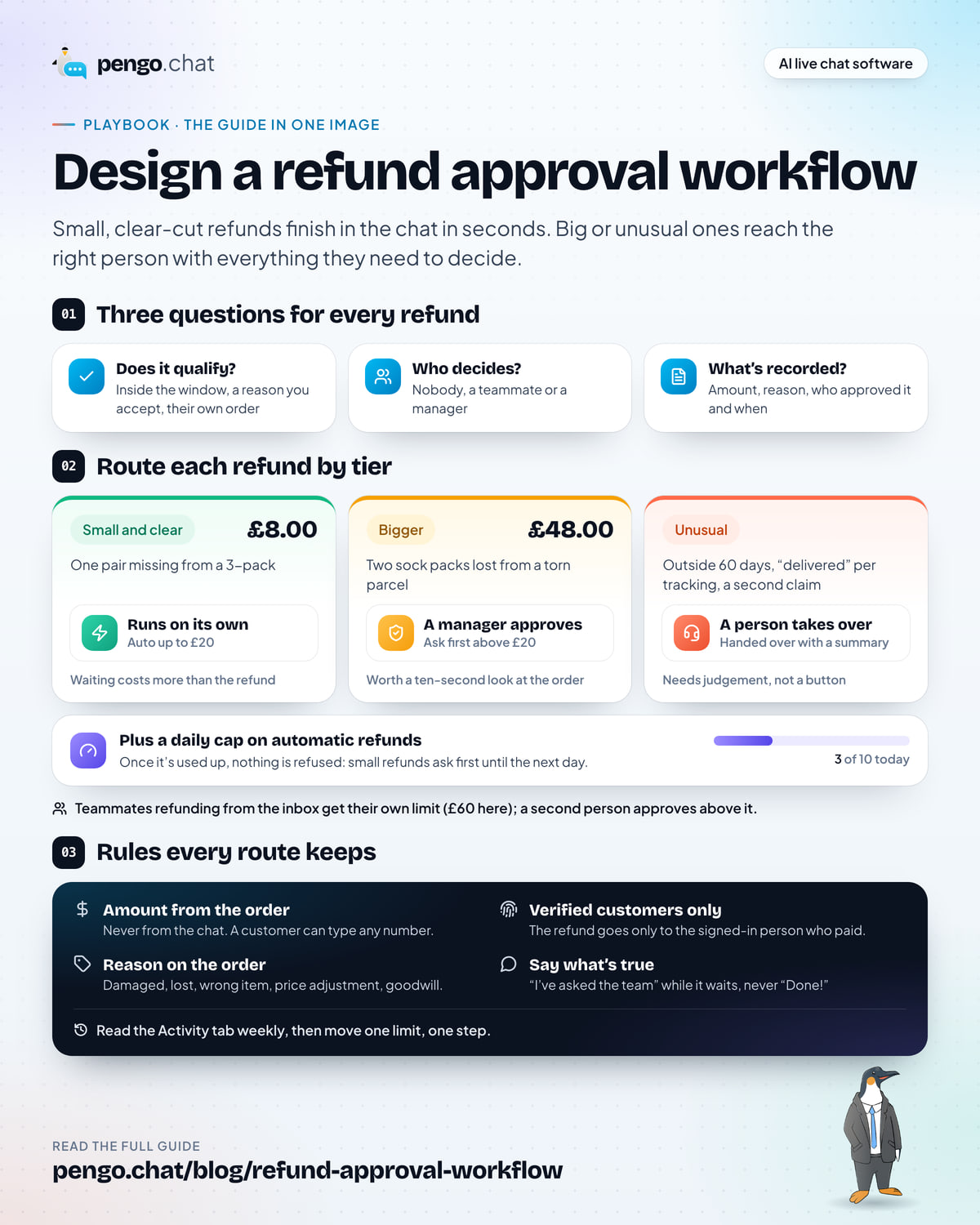
Most refund requests fall into three groups, and each deserves a different route.
| Tier | Example | Who decides | Why |
|---|---|---|---|
| Small and clear | One pair missing from a 3-pack: £8.00 | Nobody: it runs on its own | The cost of waiting is higher than the cost of the refund |
| Bigger | Two sock packs lost from a torn parcel: £48.00 | A manager approves | Worth a ten-second look at the order |
| Unusual | Outside the 60-day window, or a parcel tracking shows as delivered | A person handles the conversation | Needs judgement, not a button |
The point of the top tier is speed. The point of the middle tier is a second pair of eyes, and the point of the bottom one is to make sure a person is in the conversation, not just approving a request. In Pengo, write each “always a person” case as escalation guidance in Intelligence › Behavior, and Pengo hands those conversations to your team with a summary.
Here is how one illustrative policy routes a refund. Try a few amounts, switch between Pengo refunding in the chat and a teammate refunding from the inbox, and see what happens when the day’s cap is used up.
Where £8.00 lands
Auto
Refunded in the chat
Within the £20.00 auto limit, and today’s cap has room. Pengo refunds the original payment straight away.
- Reason noted on the order
- Customer gets a confirmation in the chat
- Logged in the Activity tab
Ask first
Managers approve
Above the £20.00 auto limit. Pengo tells the customer it has asked the team, and the request goes to managers and the owner, since refunds are high risk.
- Banner in the inbox, plus phone, Watch, email or Slack
- Approve, edit and approve, or reject
- Reminder after 15 minutes
Ask first
Daily cap reached
Pengo has made its 10 automatic refunds for today, so even a small refund waits for a person until tomorrow.
- Same approval request as above the limit
- The cap resets the next day
- Nothing is refunded until someone approves
Actions button
Teammate runs it
Within the teammate’s own £60.00 limit. Customer, order and amount are filled in; they check the details and click Run.
- Pengo drafts the reply
- Unverified customer? Pengo warns first
- Logged with who ran it
Second approval
A second person approves
Above the teammate’s own £60.00 limit, so a second person approves before the refund runs.
- Request goes to the approvers
- First decision wins
- Logged with who ran it and who approved
Every route: verified customers only, and the amount comes from the order, never the chat.
An interactive refund router. With Pengo refunding £8.00 and today's cap still having room, the refund runs on Auto and is refunded in the chat. £48.00 asks first and managers approve. When the daily cap is used up, even small refunds ask first. A teammate refunding up to £60 runs it from the Actions button; above £60, a second person approves.
Step 3: Add a daily cap
A per-refund limit answers “how big can one refund be?” A daily cap answers a different question: “how many can go out without a person on a bad day?”
Bad days happen: a courier crushes a van of parcels, or a product page shows the wrong price for an afternoon. On a normal day, every refund under £20 is fine. On one of those days, fifty of them in an hour should make someone look up.
Set the cap from your own numbers. Count how many small refunds Pengo would make on its own on a busy day, and set Automatic runs a day comfortably above it, so it never bites on a normal day and always bites on an odd one. Together with the £20 limit, it also caps the money: 10 runs of at most £20 is £200 at most without a person.
When the cap is reached, nothing is refused. Further requests simply ask first until the next day, so customers still get their answer, just from a person. In the router above, switch the cap to “Used up” to see an £8.00 refund that would normally run on its own wait for approval instead.
Step 4: Take the amount from the order, never from the chat
This is the rule that matters most, and the one that’s easiest to get wrong when you build refunds into a chatbot yourself.
A customer can type anything. “I paid £90 for that” costs nothing to say. If your automation reads the amount from the conversation, your auto limit protects nothing. The amount has to come from the order or invoice itself, the one record the customer can’t edit.
The same goes for what is refunded. The order says what was bought, at what price, and whether it’s already been refunded. Refunding the two packs of socks on order KW-21086 means refunding the line items as the order records them, to the original payment, not to a card number someone pastes into the chat.
Step 5: Check who’s asking
A refund moves money, so it should only ever go to the person who paid. That means knowing who you’re talking to before anything runs.
There are two common levels of proof in ecommerce support:
- Order number and email. The customer gives the order number together with the email on the order. Good enough to show them their order status or add a delivery note.
- A verified customer. The customer is signed in to your site, and your site vouches for them. This is what refunds, cancellations and billing changes should require.
Order numbers and emails turn up in forwarded emails and shared inboxes, so neither proves the person typing is the person who paid.
Step 6: Note the reason on the order
Every refund should say why it happened, in the place your team and your accountant will look later: the order itself. “Damaged in transit, two packs of socks” on KW-21086 answers the questions that come up months later. Was it a courier problem? A packing problem? The same customer as last time?
Reasons also make your weekly review possible: if damaged-in-transit refunds jump after you change packaging, you want to see it in a list.
Choose a small, fixed set of reasons (damaged in transit, lost in transit, wrong item, price adjustment, goodwill) and use them consistently. Free-text reasons are fine for detail, but a fixed label is what you can count.
Step 7: Decide what the customer hears while it waits, and after
A refund that’s waiting for approval is the moment customers most often get misled, usually by accident. A chatbot that says “Done! Your refund is on its way” before anyone has approved anything has made a promise your team now has to keep, or break.
The rule is simple: say what’s actually true. While a refund waits, the customer hears that it’s with the team. When it’s decided, they hear what happened.
An inbox thread with Gareth Ellis from Cardiff. He says his box arrived ripped open and both packs of socks are missing. Intelligence replies that it has asked the team to refund £48.00 to his card and will confirm once it's done. An event reads Refund an order, waiting for approval, and an approval card above the composer reads Needs approval: Refund an order, with the order number, £28.50 of £39.75, the items, the reason and Approve, Decline and Take over buttons.
Write down the three follow-ups before you go live:
| Outcome | What the customer hears |
|---|---|
| Approved and done | A confirmation of what happened: the amount, where it’s going, and that there’s nothing more to do |
| Rejected | That a teammate has reviewed the request and will follow up with them directly |
| Couldn’t be completed | That it couldn’t be done automatically and a teammate will follow up |
Notice what’s missing from the rejected case: the reason. A refusal deserves a person, not a template. If your teammate wants to say why, they can add a message when they reject it, or take over the conversation.
Make approving fast, wherever the approver is
The middle tier only works if approvals don’t sit for hours. A refund that waits until a manager is back at a desk is barely faster than email. Approvers should be able to decide from wherever they are, with the customer, the order and the amount in front of them.
Plan for nobody answering, too. A refund nobody approved should never go out on its own after a while.
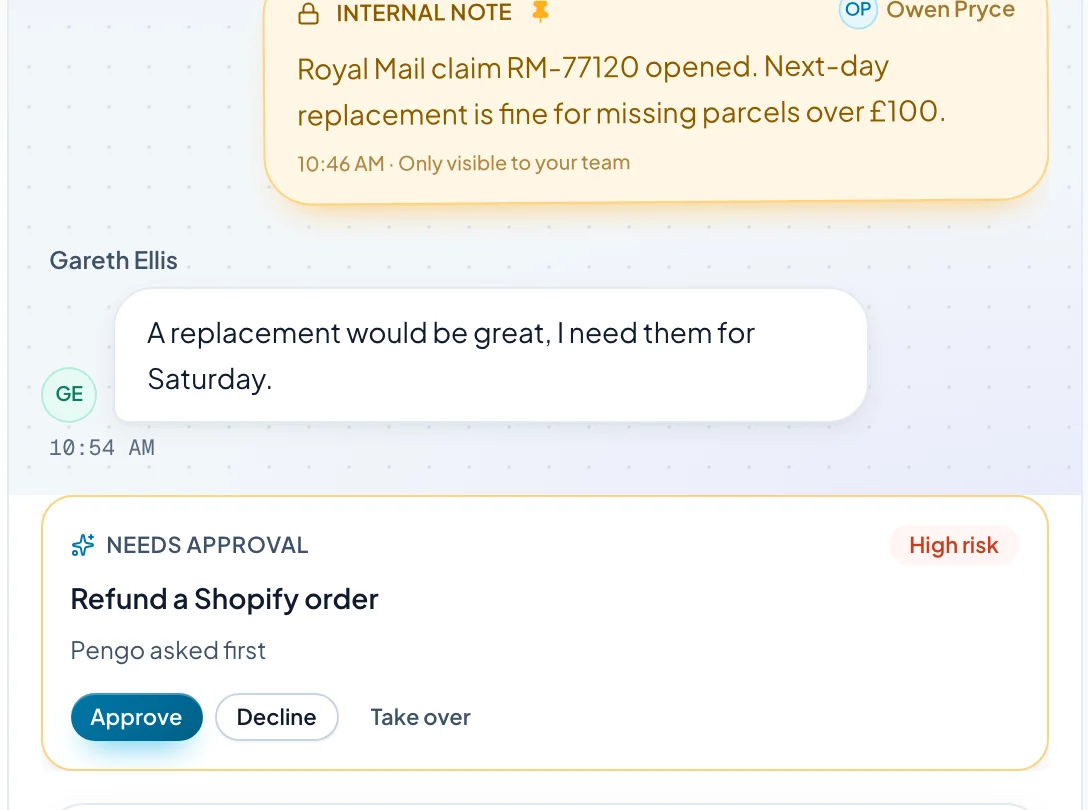
By default, any teammate can approve low- and medium-risk actions, while high-risk ones, refunds included, go to managers and the owner. That matches the policy most shops already have: the person who can say yes to money is the person who’s accountable for it. Each approver picks where they get requests in Settings › Your profile › Notifications.
When a teammate refunds from the inbox
Not every refund starts with an AI. Often a teammate is already in the chat and just needs to issue it. The same rules should apply to them, with one addition: a personal limit.
A sensible set-up gives each teammate a limit they can refund on their own, and requires a second person above it. It’s the four-eyes rule finance teams already use, and it protects your team as much as your money: nobody has to defend a big refund they approved alone.
The other rule for teammates is about identity. A teammate can see more context than any automation, but they can still be fooled by a confident customer with someone else’s order number. The tool should make them stop and confirm they’ve checked who they’re talking to before a change for a customer who isn’t verified, and record that they did.
If you’d rather refunds were always a person’s job, there’s a mode for that too. Team only keeps the action for your team: when a customer asks for a refund, Pengo says a teammate is joining, hands over, and leaves the refund pre-filled in the Actions button for a one-click run.
Offer the alternative before the refund
Some requests are better answered with something other than money back. A parcel that arrived three days late but intact is an apology, not a refund. A customer who’s disappointed but still keen deserves a reason to order again.
Write down which situations get an alternative instead of a refund, and what that alternative is:
- A single-use discount code for a late delivery or a small disappointment. Pengo’s Send a discount code creates one only this customer can use, valid for 30 days, on Shopify, WooCommerce and BigCommerce.
- Account credit for subscription businesses, where the next invoice is the natural place to make up for a problem.
Alternatives go through the same tiers. A discount code is still money, and it starts on Ask first like any other change in your store that moves money.
Refunds for subscription businesses
Everything above applies to subscriptions, with a few differences worth planning for. Take Tallybook, a bookkeeping app for small agencies with Growth and Scale plans, billed through Stripe.
Subscription refunds are usually about a specific payment: a customer charged twice in a month, or charged after they meant to cancel. So the refund attaches to that payment, in full or in part, back to the card it came from. As with orders, the amount comes from the invoice, not the conversation.
Subscription businesses also have more alternatives than shops do, and they matter more, because the customer asking for a refund is often deciding whether to stay:
- Account credit that comes off their next invoices, for a goodwill gesture after an outage.
- A coupon, but only one from a list you’ve approved. The AI should never be able to invent a discount.
- Skip or pause instead of cancel, for a customer who needs a break, not a refund.
Map your policy to the settings
Once the policy is written, each line should land somewhere concrete. If a line has nowhere to go, it’s either a job for your help content or a reason to hand the conversation to a person.
The one line you can’t loosen is identity. Refunds are for verified customers only, built into the action, so a busy afternoon can’t talk anyone out of it.
Review the Activity tab weekly and tune your limits
Your first limits are guesses. Good guesses, if you based them on what your team already does, but guesses. The way to improve them is to look at what actually happened, once a week, for fifteen minutes.
-
List last week's refunds by route
How many ran on Auto, how many asked first, how many were rejected, and how many failed. In Pengo, the Activity tab in Intelligence › Actions lists every action Pengo ran or requested and how each one turned out.
-
Look at what your team approved without changes
If nearly every request just above your auto limit was approved as it was, the limit may be too low. That’s time your managers spent saying yes to things they’d always say yes to.
-
Look at what was rejected, and why
Rejections are your policy’s blind spots. A cluster of rejected “lost parcel” claims that tracking says arrived is a rule waiting to be written.
-
Check the failures
A refund that was approved but didn’t go through usually means a disconnected integration or a missing permission in your store. See A Pengo Action failed or didn’t run.
-
Move one limit, one step
Raise the auto limit or the cap a little, or lower it if something went wrong. Then leave it for at least a week before you judge.
Treat the cap and the limit as separate dials. If small refunds are piling up for approval on busy days, the cap is too low. If managers are approving lots of mid-sized refunds without a second thought, the limit is.
Mistakes we see most often
- Automating before writing the policy. The automation then encodes whatever the first person to set it up happened to believe.
- Reading the amount from the chat. The single fastest way to turn an auto limit into an invitation.
- “Done!” before it’s done. A customer told their refund is on its way will hold you to it, whether or not anyone approved it.
- One approver for everything. If every refund needs the owner, refunds wait for the owner’s holiday.
- Never moving the limits. A limit set on day one and never reviewed is either too tight or too loose, and nobody has checked which.
Your refund workflow checklist
Refund approval workflow checklist
0 of 13 done
A refund workflow built this way doesn’t make your team more generous or more strict. It makes them consistent, and it gives their time back for the refunds that really need a decision. If you run a store, the companion playbook on Shopify customer service automation covers the rest of the inbox, from “where’s my order?” to address changes and cancellations, and live chat for ecommerce covers the chats that happen before anyone buys. To see every action and its default mode, start on the Pengo Actions page.