Shopify customer service automation: order status, address changes, refunds and returns in chat
How to automate Shopify customer support safely: map each request to an action, keep order lookups private, and make changes only before an order ships.

On this page
- The requests that fill a Shopify inbox
- How order lookups stay private
- Where’s my order: automate this first
- Address changes and cancellations: only before it ships
- Returns and refunds
- Sorry codes instead of refunds
- Notes and tags: the quiet time-savers
- When your team is in the chat
- Connect Shopify
- The same playbook on WooCommerce and BigCommerce
- A recommended starting setup
- How to measure it
- What to keep with your team
- Mistakes we see most often
- Your Shopify automation checklist
Key takeaways
- Most of a Shopify store's inbox is the same few requests: where's my order, change my address, cancel, return, refund, a sorry, and a tag for VIP or wholesale customers. Each one maps to a single action with its own rules.
- Start with order lookups. They change nothing, so they can run on their own, but only for the order's owner: a verified customer, or someone with the order number and the email on the order.
- Changes to an order start on Ask first. Address changes and cancellations only work before an order ships; after that, Shopify refuses the change and a teammate follows up.
- Refunds, cancellations, returns, address changes, discount codes and customer tags need a verified customer, because they move money or change someone's account.
- Measure resolved requests, approval times and rejections per action, then move one action at a time to Auto.
Open any Shopify store’s support inbox on a Monday morning and you’ll find the same conversations, written a hundred different ways. Where’s my order. Can I change the address. Please cancel, I ordered twice. This arrived broken. It came a week late. Each one takes a teammate a few minutes: find the order, check the status, make the change in Shopify, come back and reply.
None of those minutes need judgement. They need access to the order and a clear rule about when the change is allowed. That’s exactly what customer service automation should handle, and exactly where badly built automation goes wrong: showing an order to the wrong person, cancelling something that’s already shipped, or promising a refund nobody approved.
This playbook goes through the requests that fill a Shopify inbox, one at a time, and shows how to automate each in the chat safely, using Kettlewell Outdoor, a walking boots and outdoor clothing store shipping from Leeds, as the example.
The requests that fill a Shopify inbox
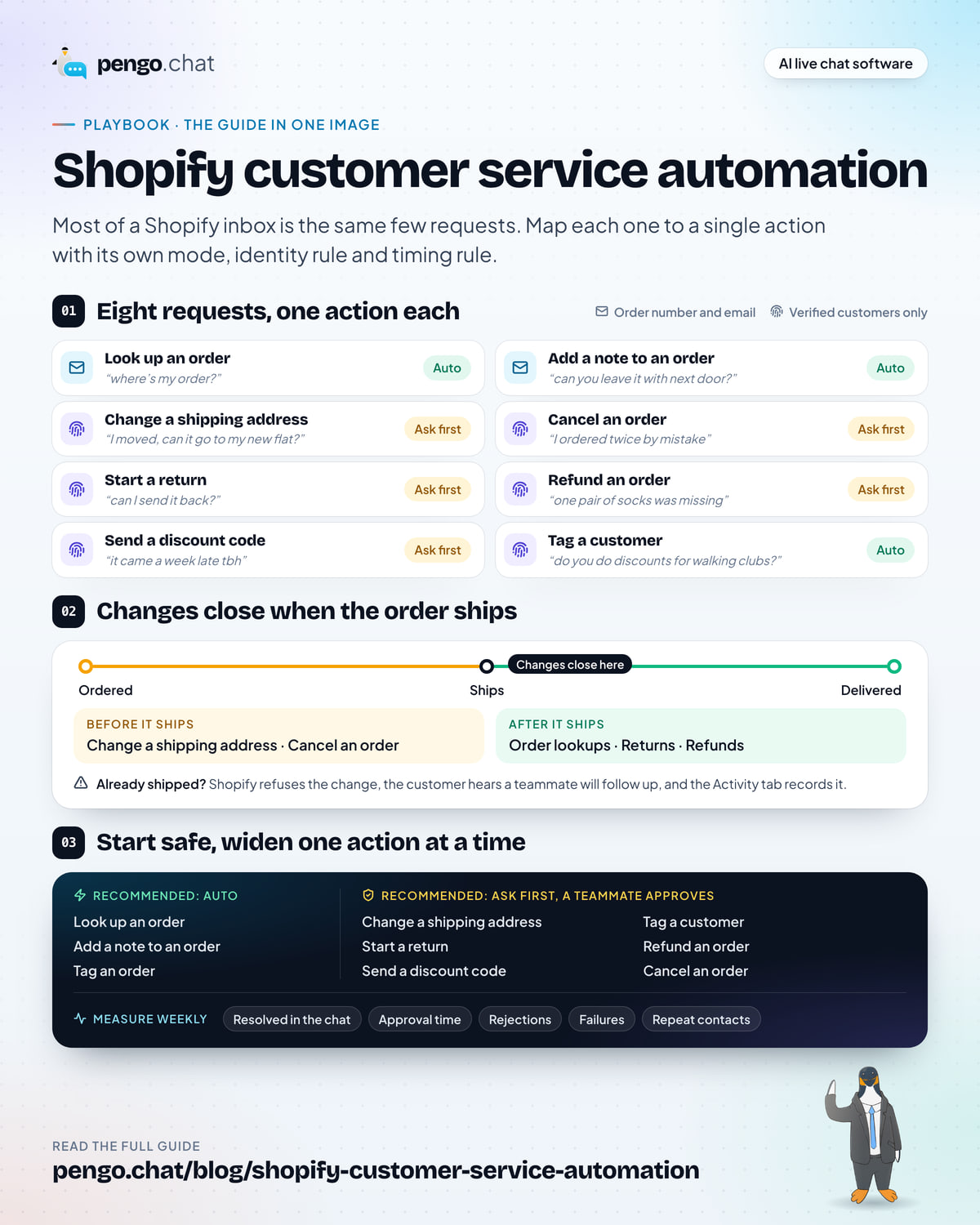
Almost every post-purchase conversation in a store falls into one of eight requests. Each maps to one action in your store, and each action needs three decisions:
- The mode. Does it run on its own, wait for a teammate’s yes, or stay with your team?
- The identity rule. What does the customer need to prove before it runs?
- The timing rule. Is it allowed at every stage of the order, or only before it ships?
Before you set anything up, check the list against your own inbox. Read the last 50 post-purchase conversations and tally them by request. Order status will almost certainly be near the top, but your own mix tells you where the time goes, and so where to start.
Here’s the map for a Shopify store, with the mode each action starts in.
A table mapping customer requests to actions. Where's my order: Look up an order, Auto, order number and email. Leave it with next door: Add a note to an order, Auto, order number and email. Change address: Change a shipping address, Ask first, verified customers only, only before it ships. Ordered twice: Cancel an order, Ask first, verified, unshipped only with full refund and restock. Send it back: Start a return, Ask first, verified. Missing pair: Refund an order, Ask first, verified. Came late: Send a discount code, Ask first, verified, single-use for 30 days. Wholesale: Tag a customer, Auto, verified.
Two patterns are worth noticing. First, what starts on Auto either changes nothing, like the lookup, or only adds a note or a tag your team can remove in a click; anything that moves money or changes the order itself starts on Ask first. Second, the identity rule gets stricter as the stakes rise: seeing an order or leaving a delivery note needs the order details, while anything that moves money or changes an account needs a verified customer.
How order lookups stay private
The first rule of automating order status is that the order belongs to one person. A chatbot that shows order details to anyone who types an email address is a data leak with a friendly tone.
There are two safe ways to know it’s the order’s owner:
- A verified customer. The shopper is signed in to your site, and your site vouches for them through identity verification. They can ask about any of their orders without typing anything.
- The order number and the email on the order. Both together. Someone who has both is almost certainly the buyer, or someone the buyer trusted with them.
An email on its own is never enough. Emails are easy to find, guess or borrow. An order number on its own isn’t enough either, because order numbers are sequential and appear on packing slips.
Where’s my order: automate this first
“Where’s my order” is one of the most common post-purchase questions in ecommerce, and the easiest to automate well. The answer already exists in Shopify: the order’s status, the tracking link and what’s in it.
A good automated answer does three things:
- Gives the status in plain words. “It left our Leeds warehouse yesterday with Royal Mail” beats “Fulfilled”.
- Shares the tracking link so the customer can check again without asking.
- Sets expectations from your own policy. If the shipping page says UK orders take 1–2 working days, the answer should say so, from that page.
The last point is where your help content matters. The order status comes from Shopify; how long delivery usually takes comes from your shipping page. Keep that page accurate and the answers will be too. Our guide to live chat for ecommerce covers how to cut “where is my order” chats further with proactive messages after checkout.
Lookups are the safest place to start because they never change anything. There’s nothing to approve, so they’re either on Auto or Off.
One “where’s my order” deserves a person every time: tracking says delivered, and the customer says it isn’t there. That’s a missing-parcel claim, not a status question, and it usually ends in a refund or a replacement. Make it a handoff rule, so Pengo shares what tracking shows, then brings in your team with a summary instead of repeating the tracking link.
Address changes and cancellations: only before it ships
Two of the most common requests are also the most time-sensitive. A customer who moved, or who ordered twice, needs the change made before the parcel leaves. After that, it’s a different conversation.
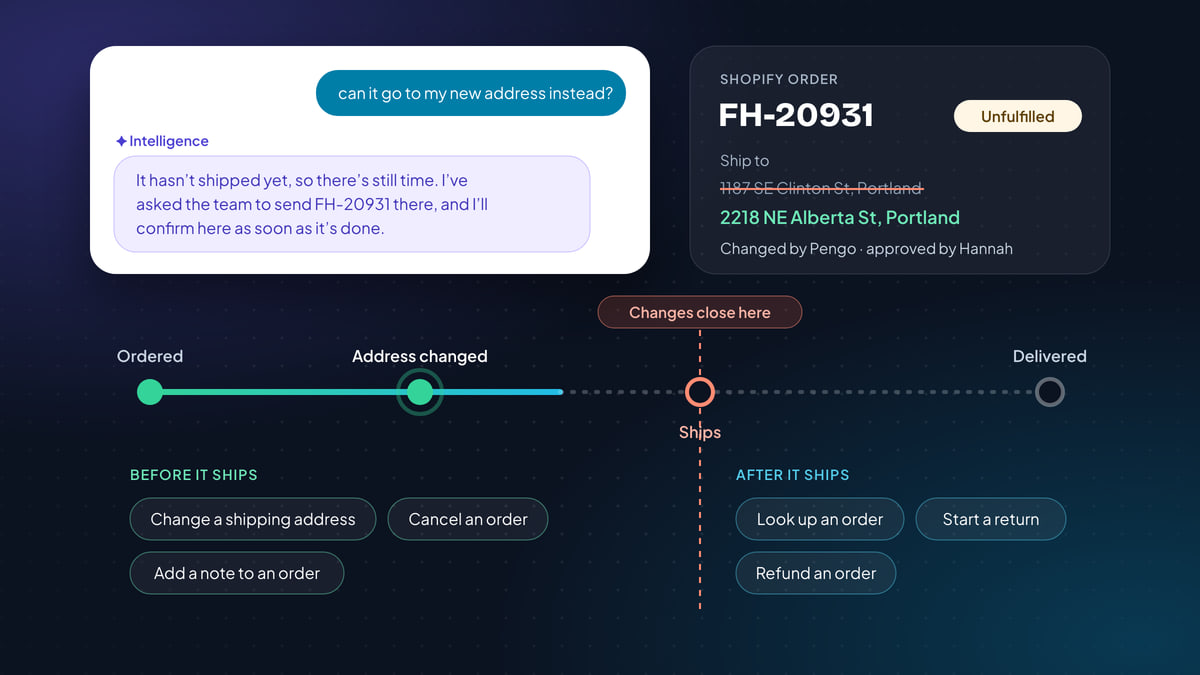
Here’s an address change done properly: the customer is signed in, the order hasn’t shipped, and the assistant says what’s actually happening at each step.
What Ellie sees, signed in to her account
What Hannah approved in the inbox
A chat widget for Kettlewell Outdoor. Ellie says she moved and asks for order KW-20931 to go to 2218 NE Alberta St, Portland. Pengo replies it hasn't shipped yet, it has asked the team to send it there and will confirm once done. Then: Done, KW-20931 will now go to the new address. Beside it, the inbox approval card, Needs approval: Change a shipping address, approved by Hannah, with its mode Ask first, verified customers only, only before the order ships, and recorded in the Activity tab.
Notice the second message. Pengo doesn’t say “Done!” when the request goes to the team; it says it has asked. The customer gets the confirmation once the change has actually been made.
Cancellations work the same way, with more at stake. Cancel an order cancels an unshipped order, refunds it in full and restocks the items. It needs a verified customer, and it’s high risk, so by default managers and the owner approve it.
What happens when the order has already shipped
This is the case most automation handles badly. The customer asks to cancel, the bot says “Sure!”, and nobody notices the parcel left yesterday.
The rule should be that the store decides, not the chatbot. If the order has shipped, Shopify refuses the address change or the cancellation, and the customer hears the truth:
- The customer is told the request couldn’t be completed automatically and that a teammate will follow up.
- Your team sees “Approved, but the action failed” in the inbox, with the reason.
- The Activity tab records it, so you can see how often it happens.
Then a teammate takes it from there: contacting the carrier, or offering a return once it arrives. Write that next step into your help content too (“Already shipped? Here’s how to return it”), so the follow-up is quick.
Returns and refunds
Returns and refunds are where automation saves the most time and needs the most care, because money moves.
Start a return opens a return in Shopify for the items the customer wants to send back, with their reason recorded. Kettlewell Outdoor takes back unworn items within 60 days, swaps sizes for free and sends a prepaid Royal Mail label, so the conversation ends with the return open and the customer knowing exactly what happens next.
Refund an order refunds in full or in part to the original payment, with the reason noted on the order. Three rules keep refunds safe:
- The amount comes from the order, never from the chat. A customer can type any number; the order can’t be argued with.
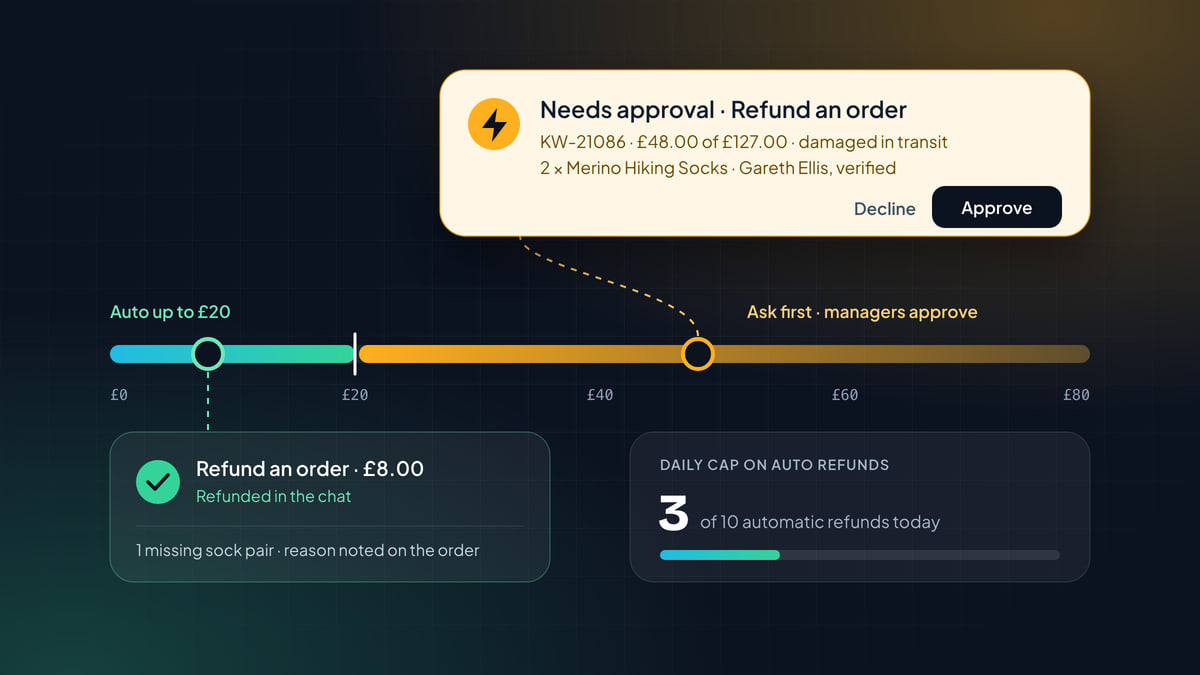
- Small refunds can run on their own, up to an amount. On Auto, a guardrail such as “auto up to £20, ask above” lets a missing pair of Merino socks be refunded in seconds while bigger refunds wait for a manager.
- A daily cap limits how many run on their own. Past the cap, refunds ask first until the next day, so a bad day can’t empty your account.
The details, from writing the policy to tuning the limits, are in our refund approval workflow playbook. Guardrails are set per action in Intelligence › Actions; see Guardrails and limits.
Sorry codes instead of refunds
Not every complaint deserves money back. A parcel that arrived three days late but intact calls for an apology, and a good apology gives the customer a reason to order again.
Send a discount code creates a single-use code that only this customer can use, valid for 30 days. Because it’s tied to one customer and one use, it can’t be shared on a coupon site, and it needs a verified customer to send.
Write down when your team offers one: a late delivery, a mix-up you caused, a loyal customer who had a bad week. Those rules belong in your help content and your team’s habits, so Pengo offers the code in the same situations your team would.
Notes and tags: the quiet time-savers
Some of the most useful actions never reach the customer’s screen at all.
- Add a note to an order puts a customer’s request on the order for whoever packs it: leave it with a neighbour, gift wrap it, deliver after Friday. It needs the order number and email, like a lookup.
- Tag an order marks it for your team: a damaged parcel your warehouse tracks, a gift order that needs a card, a priority flag for fulfilment.
- Tag a customer adds tags to the customer’s Shopify account so your team and your store’s own automations recognise them: VIP for a regular, Wholesale for the walking club that just asked about bulk pricing, Early access for someone who opted in.
Customer tags deserve a little more care than order tags. If a tag triggers something in your store, such as a wholesale price list, treat it like any other change that affects money.
When your team is in the chat
Automation isn’t only for conversations the AI handles alone. When a teammate is already chatting with a customer, the same actions are one click away.
For actions you’d rather a person always ran, use Team only. If Pengo is chatting when a customer needs it, Pengo says a teammate is joining, hands over, and leaves the action pre-filled in the Actions button for a one-click run.
Connect Shopify
Connecting your store takes a few minutes. It’s separate from installing the chat widget on your storefront.
-
Create a custom app in Shopify
In your Shopify admin, go to Settings › Apps and sales channels › Develop apps, create a custom app and give it the scopes the setup guide lists. That includes
read_ordersandread_customersto see orders, andwrite_ordersso Pengo can add notes and cancel orders. Install it and copy the Admin API access token. -
Connect it to Pengo
In Settings › Integrations › Shopify, choose your website, enter your shop domain and the token, and click Test connection.
-
Choose how Pengo acts
In Intelligence › Actions, open the Actions tab and pick a mode for each Shopify action. The full list, with defaults and identity rules, is in Shopify actions.
Pengo only uses the scopes each integration needs, and integration keys are encrypted at rest. If an action fails, for example because a scope is missing, the inbox shows the reason; see A Pengo Action failed or didn’t run.
The same playbook on WooCommerce and BigCommerce
Everything above works the same way on the other big store platforms, with the same modes, identity rules, guardrails and approvals.
- WooCommerce. Create a REST API key with read and write access in WordPress, then paste the key and secret into Settings › Integrations › WooCommerce. Pengo looks up orders, adds notes, cancels unshipped orders, refunds in full or in part, changes shipping addresses before they ship and sends single-use coupons. See the WooCommerce integration and WooCommerce actions.
- BigCommerce. In Settings › Integrations › BigCommerce, click Connect and approve Pengo in your BigCommerce control panel. The same actions follow. See the BigCommerce integration and BigCommerce actions.
If you run subscriptions alongside your store, the Stripe integration handles skips, pauses, invoices and payment refunds the same way.
A recommended starting setup
You don’t need to decide everything on day one. Start with what’s safe, keep a person on everything that moves money, and widen it as you learn.
The Actions tab of Intelligence › Actions listing nine Shopify actions with their risk and mode. Look up an order, Add a note to an order and Tag an order are on Auto. Change a shipping address, Start a return, Send a discount code, Tag a customer, Refund an order and Cancel an order are on Ask first.
The reasoning behind each choice:
- Look up an order: Auto. It changes nothing, and it’s the question you get most.
- Add a note and Tag an order: Auto, as they start. Both are low risk, and a delivery instruction is only useful if it reaches the order before it’s packed.
- Change a shipping address, Start a return, Send a discount code: Ask first. Medium risk. Watch a couple of weeks of approvals before letting any of them run alone.
- Tag a customer: move it to Ask first. It starts on Auto because it’s low risk on paper, but a Wholesale or VIP tag can switch on prices or perks in your store. If your customer tags only help your team recognise people, leave it on Auto.
- Refund an order and Cancel an order: Ask first. High risk, so managers and the owner approve by default. When you’re ready, give refunds an auto limit rather than switching them fully to Auto.
Approvals don’t have to wait for someone at a desk. Requests reach approvers as a phone notification, on Apple Watch, by email, in Slack or in the inbox, and the first decision wins. See Approve from anywhere.
How to measure it
Automation that nobody measures quietly drifts. Track a few numbers per action, weekly:
- Requests resolved in the chat. How many order questions and changes finished without a teammate writing a reply. This is the time you got back.
- Approval time. How long Ask first requests wait for a decision. If address changes sit for an hour, customers miss the shipping window and the change fails.
- Rejections. Which actions your team turns down, and why. A cluster of rejected refunds is a policy question, not a software one.
- Failures. Changes that were approved but couldn’t be made, usually because the order had already shipped or a scope is missing.
- Repeat contacts. Customers coming back about the same order within a few days. A resolved conversation that comes back wasn’t resolved.
The Activity tab in Intelligence › Actions lists every action Pengo ran or requested and how each turned out, and every run, approval and rejection is logged with who decided. Read it once a week. When an Ask first action has been approved without changes for a few weeks running, that’s your sign to try it on Auto, one action at a time.
What to keep with your team
Automating the routine requests is what gives your team time for the ones that need them. Some conversations should go to a person from the first message, whatever the action settings say:
- Missing parcels and “delivered but not here” claims. They need judgement about the carrier, the customer’s history and what to send.
- Complaints that aren’t really about the order. A customer who’s upset about how they were treated wants a person, not a code.
- Payment disputes and chargebacks. These have deadlines and paperwork of their own.
- Large or unusual orders. Twelve pairs of boots for a school expedition, a wholesale enquiry, a custom request. These are sales conversations.
In Pengo, the Hand over to your team action brings in a teammate with a written summary, so the customer never repeats themselves. Write each of these cases as a rule, and the handoff happens the same way every time.
Mistakes we see most often
- Showing orders to anyone with an email. Always require the order number with the email, or a verified customer.
- Letting the chatbot decide what’s possible. The store knows whether an order has shipped. Let the store refuse, and tell the customer honestly.
- “Done!” before it’s done. If a request is waiting for a person, say so.
- Everything on Auto on day one. You’ll find out about the edge cases from customers instead of from your approval queue.
- Never reading the Activity tab. It’s the only place you’ll see a missing scope, a slow approver or a refund rule that needs rewriting.
Your Shopify automation checklist
Shopify customer service automation checklist
0 of 12 done
A Shopify inbox automated this way doesn’t feel automated to the customer. It feels like a shop that answers straight away, knows their order and never promises what it can’t do. Your team keeps the conversations that need a person, and gets their Mondays back. See every action and its default mode on the Pengo Actions page, or read how Pengo Intelligence answers the questions around them from your own content.