How to switch live chat software without losing a conversation
A vendor-neutral migration plan for live chat: what to inventory, how to export and import, what you rebuild, and how to run cutover day so no customer gets dropped.

On this page
- Why teams switch live chat software
- The migration at a glance
- Step 1: Inventory everything you use
- Step 2: Export from the old tool
- Step 3: Import what moves, rebuild what doesn’t
- Should you run both tools in parallel?
- Cutover day: swap the snippet without dropping anyone
- Tell your team, and mostly don’t tell customers
- The first two weeks after cutover
- Mistakes we see most often
Key takeaways
- Switching chat tools is mostly inventory and timing, not data. List everything you use in the old tool before you export anything.
- Contacts and conversation history can usually be exported and imported. Saved replies, routing, triggers and bot flows almost always have to be rebuilt by hand.
- Build the new setup alongside the old one for a week, but never run two widgets on the same page.
- On cutover day, swap the snippet everywhere in one release and keep the old inbox open, so replies already in flight still reach customers.
- Cancel the old tool only after a final export and two weeks of watching both inboxes. Check the renewal date first, so you don't pay twice.
Switching live chat tools sounds risky because the chat is where customers talk to you. If something breaks, nobody files a bug report. They just leave, or they reply to a conversation that no longer reaches anyone.
The risk is real, but it’s concentrated in a few predictable places: settings nobody wrote down, replies landing in the old inbox after the switch, and a snippet left running on one forgotten page. This guide takes you through a migration that works with any pair of tools, in the order we’d do it, with the parts that usually go wrong called out.
Why teams switch live chat software
Most teams don’t switch because of one feature. They switch because the tool’s cost or shape stopped fitting the team. The common reasons:
- The pricing model. Per-seat pricing gets expensive as more people help out in chat, and per-resolution AI pricing makes the bill rise as the AI gets better. Many teams move to a tool with simpler, predictable pricing.
- AI that costs extra or does too little. Some tools charge separately for AI, others bundle an assistant that can’t hand off well. Our guide to setting up an AI agent that actually resolves questions covers what good looks like.
- Site speed. A widget that loads a lot of code on every page view can drag down your Core Web Vitals. You can measure your current widget before deciding.
- Missing pieces. No mobile app, a weak shared inbox, no way to see who’s on the site, or reports that don’t answer your questions.
Pick your timing well. Don’t move tools in your busiest weeks; an outdoor clothing store like Kettlewell Outdoor shouldn’t cut over in the run-up to Christmas. And if you’re locked into an annual contract with months left, do the preparation now but schedule cutover close to the renewal date, so you’re not paying for two tools for long.
The migration at a glance
The plan below assumes a small team, a few hundred to a few thousand past conversations, and someone who can spend a few hours a week on it. Bigger setups take longer in week −1; the shape stays the same.
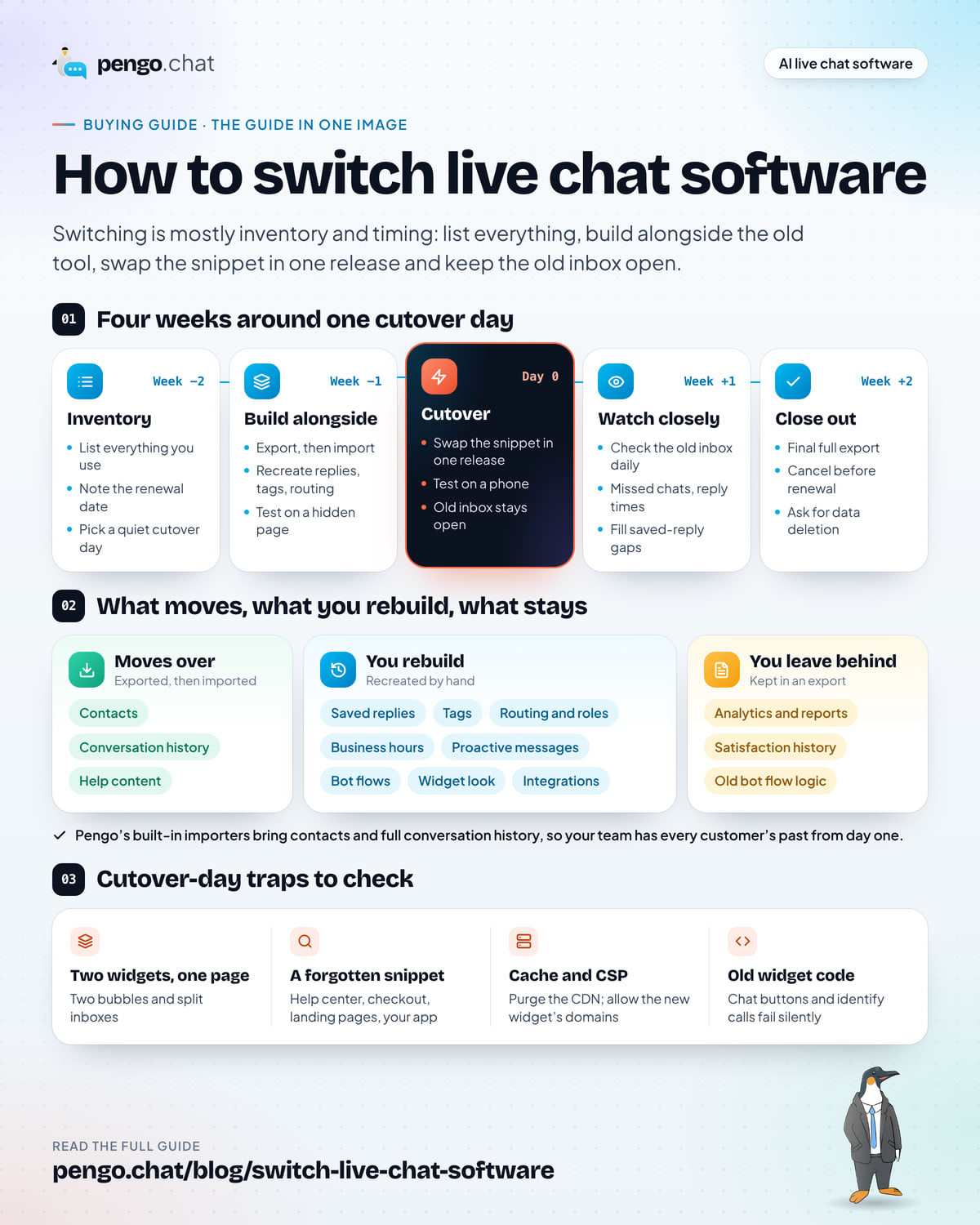
A timeline from week minus two to week plus two. Week minus two: inventory. Week minus one: export, import and rebuild alongside the old tool. Day zero: cutover, swapping the snippet and keeping the old inbox open. Week plus one: watch closely. Week plus two: final export, cancel before renewal and request data deletion.
Step 1: Inventory everything you use
Before you export a single file, make a list of everything your current tool does for you. This is the step people skip, and it’s where most migration problems come from: a routing rule nobody remembered, a proactive message on the pricing page, a “Chat with us” button in the footer that calls the old widget directly.
Go through your current tool’s settings page by page and note:
| What | What to write down | Why it matters |
|---|---|---|
| Contacts | Count, and which custom fields you rely on | Fields that don’t map get lost on import |
| Conversation history | Rough count, and how far back you need it | Decides how many imports you’ll run, or whether you keep an export instead |
| Saved replies / macros | Every one, with any variables | Almost never exportable; you’ll recreate them |
| Tags | The ones you actually use | A good moment to prune the list |
| Help articles | Where they live, and whether they’re public | Your AI and help center depend on them |
| Routing rules | Who gets which chats, and fallbacks | Mistakes here mean missed chats |
| Team and roles | Who has access, and who’s an admin | You’ll invite people again |
| Business hours | Hours, time zone, away message, offline form | Out-of-hours visitors are the easiest to lose |
| Proactive messages | Page, timing or condition, text, frequency | They’re often driving real conversations |
| Bot flows and automations | Each flow as plain steps | Rarely portable; they get redesigned |
| Integrations | Slack, CRM, calendars, anything connected | Each needs reconnecting and testing |
| Widget customization | Colors, position, welcome text, launcher | So the new widget feels familiar |
| Where the snippet lives | Every site, subdomain, template, plugin and tag | The one you forget keeps the old widget alive |
Two more things belong on the list: the date your current plan renews and its notice period, and any code on your site that talks to the widget’s JavaScript API, such as custom buttons that open the chat or a call that identifies logged-in users.
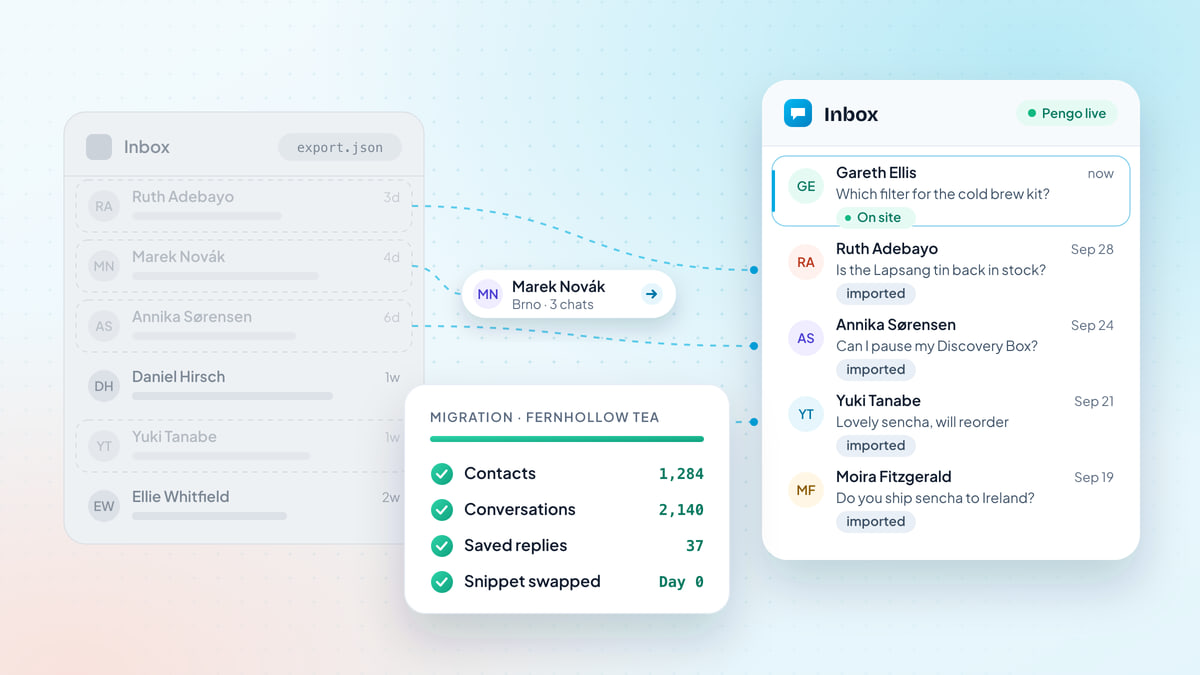
For Kettlewell Outdoor, Owen Pryce’s inventory came to 1,284 contacts, around 2,140 past conversations, 37 saved replies, a dozen tags, two routing rules (walking club group orders to Hannah, everything else round robin), weekday business hours, and one proactive message on the cart page. That fits on a single page, and it turned into the plan below.
21 tasks in your plan · 8 uploads of conversations
Week −2Inventory
- Write down the renewal date and notice period, then pick a quiet weekday for cutover.
- Open the new account and invite one teammate to help set it up.
- Check the contact export includes the fields you rely on, such as custom attributes and consent.
- Write each proactive message down: page, timing or condition, text and frequency.
- Write each bot flow down as plain steps: what starts it, what it asks, where it ends.
- List every integration and who owns the login for it.
Week −1Build alongside
- Export contacts as CSV and bring them in with the importer for your tool.
- Export contacts as CSV and bring them in with the generic CSV import.
- Export conversations as JSON and import them in 8 uploads (up to 300 conversations and 5 MB each).
- Export your full history and store it where the team can search it. Without an importer it stays in those files.
- Recreate saved replies, starting with the twenty used most.
- Recreate the tags you actually use and drop the rest.
- Point the AI at your current help center’s URL, then move articles into the new help center.
- Rebuild routing and roles, then send a test chat down each route.
- Set business hours and the away message, and test the offline form.
- Rebuild proactive messages with the same pages, timing and frequency caps.
- Replace bot flows with AI answers, saved replies and handoff rules rather than one-to-one copies.
- Reconnect each integration and send a test through it.
- Move your identify call for logged-in users, including the signed user hash if you use one.
- Find every button or link that opens the old widget and point it at the new one.
- Install the new widget on one hidden page and run a practice session with the team.
Day 0Cutover
- Remove the old snippet and add the new one in the same release.
- In Tag Manager, pause the old tag and publish the new one in the same version.
- Test on a phone, in a private window and on your busiest page.
- Leave the old inbox open so replies already in flight still reach customers.
- Forward your support email address to the new inbox.
Week +1Watch closely
- Check the old inbox every day for replies that landed there.
- Compare missed chats and first response time with your old numbers.
- Spot-check imported conversations: names, dates and message order.
- Add the saved replies people found missing.
Week +2Close out
- Take a final full export from the old tool and store it securely.
- Cancel or downgrade before the renewal date.
- Revoke the old tool’s API keys and app access.
- Ask the old vendor to delete your data once your export is safe.
A planner with a choice of current tool, checkboxes for contacts, history, saved replies, tags, routing, business hours, help articles, proactive messages, bot flows, integrations, visitor identity, custom buttons and Tag Manager, and a plan grouped by week. With the defaults and 2,140 conversations, the plan has 21 tasks including 8 conversation uploads.
Step 2: Export from the old tool
Most chat tools let an admin export contacts as CSV and conversations as JSON or CSV. The option usually lives under settings, data or account, and large exports are often emailed to you when they’re ready. Ask your vendor’s support if you can’t find it; they get the question all the time.
When the files arrive, check them before you need them:
- Open the contacts file and confirm the columns you rely on are there: email, name, company, and any custom attributes like plan or order count.
- Spot-check a few conversations in the history export. Are messages in the right order? Are internal notes included, and do you want them?
- Note what’s missing. Attachments, ratings and bot transcripts are sometimes left out of exports. Better to know now than after you’ve cancelled.
These files contain personal data, so treat them that way. Keep them somewhere access-controlled, not in a personal downloads folder, and delete local copies once the import is done and you’ve stored one master export securely.
Step 3: Import what moves, rebuild what doesn’t
Here’s what a migration carries across. Contacts move. Conversation history moves when the new tool has an importer for the old one. Almost everything that describes how you work, such as saved replies, routing and automations, gets rebuilt by hand.
Three columns. Moves over: contacts, conversation history where an importer exists, and help content. You rebuild: saved replies and macros, tags, routing and roles and business hours, proactive messages, bot flows and automations, widget look, and integrations. You leave behind: analytics and reports, satisfaction history, old bot flow logic, and anything the importer can't take.
Rebuilding sounds like a chore, but it’s the best part of the move. Every team accumulates saved replies nobody uses, tags with three conversations each and routing rules for a teammate who left. Recreate the twenty saved replies you use most and the tags that appear in your reports; let the rest go. If something turns out to be missing, someone will ask for it within a week.
Bot flows deserve their own thought. Decision-tree flows (“Sales or support?”) rarely transfer between vendors, and if you’re moving to a tool with an AI agent, you may not need most of them. Write each one down as plain steps, then ask whether an AI answer from your help content, a saved reply or a handoff rule does the same job.
While you’re rebuilding, set up the parts customers will notice first:
- The widget. Match your colors, position and welcome text closely enough that regular visitors don’t wonder whether they’re on the right site.
- Business hours and the away message. Then test the offline form by visiting outside hours, or by temporarily changing the hours.
- Routing. Send a test chat down every route, including the fallback when the assigned person is away.
- Notifications. Every teammate should get a desktop or mobile notification for a new chat before cutover, not after.
- The AI, if you’re adding one. Point it at your help content and test it against your most common questions before it talks to anyone.
Should you run both tools in parallel?
Yes, but run both inboxes in parallel, not both widgets on the same page. Two widgets on one page means two bubbles, two sets of scripts loading, and conversations split between two inboxes that each look half-empty.
What works instead:
- A hidden test page. Install the new snippet on a page that isn’t linked from anywhere, and use it for a week of practice chats. Send one from your phone, one from a colleague’s laptop, one outside business hours.
- A team rehearsal. Spend 30 minutes with everyone who’ll answer chats. One person plays the customer; the others find the saved replies, assign, add a note, hand off. People learn a new inbox faster by using it than by reading about it.
- One section first, if you must. On a large site you can move one section, such as the help center, a week early. Keep it to clearly separate pages so no visitor ever sees both widgets.
Cutover day: swap the snippet without dropping anyone
Pick a quiet weekday morning when the person doing the swap and at least one person answering chats are both around. Look at your chat volume by weekday and avoid the busiest; you also want a full working day afterwards to catch problems.
The swap itself is small. Remove the old snippet, add the new one, in a single release, so there’s no window with no chat and no window with two. Where that happens depends on how the old one was installed:
- In the site’s code or theme: replace the script tag before
</body>in the shared layout. - Through a plugin or app (WordPress, Shopify, a site builder): deactivate and remove the old vendor’s plugin or app, then add the new snippet or plugin.
- Through Google Tag Manager: pause the old tag, add the new one and publish both changes in the same container version.
Then go looking for the places people forget: a help center on a subdomain, a separate checkout template, landing pages built in another tool, your web app if customers chat from inside it. A quick way to check each is to open it with DevTools’ Network panel filtered for the old vendor’s domain. If anything still loads, there’s a snippet left somewhere.
Three technical details catch people out:
- Caching. If your site uses page caching or a CDN, purge it after the swap, or some visitors will see the old widget for hours.
- Content Security Policy. If your site has one, add the new widget’s domains or it simply won’t appear.
- Code that calls the old widget. Custom “Chat with us” buttons, links that open the chat, and identify calls for logged-in users all reference the old vendor’s JavaScript API. They fail silently after the swap unless you update them.
Keep the old inbox open
Conversations don’t end on your schedule. On cutover day there will be chats that started in the old tool and haven’t finished, and customers who reply days later to a transcript or follow-up email the old tool sent. Those replies go back to the old tool, not the new one.
So don’t cancel or lock the old account on cutover day. Keep at least one person logged in, set it to send no new proactive messages, and have someone check it every day for the first week. When Ruth Adebayo replied on day two to a week-old email about a leaking Ridgeline Rain Shell, it landed in Kettlewell’s old inbox, and Owen picked it up there because he was still checking it.
Do the same for email. If your support address forwards into the old tool, point it at the new one the same day.
Cutover day checklist
0 of 11 done
Tell your team, and mostly don’t tell customers
Your team needs more notice than your customers. A week before cutover, tell everyone who answers chats what’s changing, when, and where things moved: saved replies, tags, how to assign, how to hand off. The rehearsal covers most of it. A one-page “where things are now” note covers the rest.
Customers mostly don’t need an announcement. The bubble is in the same corner and looks much the same. If your old widget showed returning visitors their previous conversations, or customers are used to a particular email address for replies, say so in a short line where they’ll see it. Otherwise, the best migration is one they never notice.
Two pieces of housekeeping belong here too. Add the new vendor to your privacy policy’s list of processors if you keep one, and check that your cookie or consent banner describes the new widget correctly.
The first two weeks after cutover
The first two weeks are about catching what the plan missed. Spend ten minutes a day on it:
- Check the old inbox for replies that landed there. They should tail off within days.
- Compare missed chats and first response time with the numbers you noted on cutover day. A jump usually means a routing rule or a notification isn’t working, not that the team got slower.
- Ask the team what’s missing. Saved replies people reach for and can’t find, tags they want back, a view they used daily. Add them as they come up.
- Spot-check imported history. Open a few imported conversations and check names, dates and message order.
- If you’ve added an AI agent, read its conversations. Twenty a week is enough to catch content gaps early.
At the end of week two, close out. Take one final full export from the old tool and store it with the others. Revoke its API keys and app connections. Cancel or downgrade before the renewal date, then ask the old vendor to delete your data. Most vendors have a process for this, and keeping a copy of the confirmation is sensible under GDPR.
Mistakes we see most often
- Skipping the inventory. The forgotten routing rule or proactive message is always the one that mattered.
- Running two widgets on the same page. It looks broken to visitors and splits your conversations.
- Missing a snippet. The help center on a subdomain keeps sending chats to an inbox nobody’s watching.
- Cancelling on cutover day. Replies keep arriving in the old tool for days. Give it two weeks.
- Rebuilding everything exactly as it was. A migration is the cheapest moment you’ll ever get to drop saved replies, tags and bot flows that no longer earn their place.
A chat migration done this way is mostly quiet work in the two weeks before anyone notices: a list, a few exports, an afternoon of rebuilding and a rehearsal. Cutover day is a ten-minute change and a few hours of watching. If you’re still deciding where to move to, see everything Pengo includes.